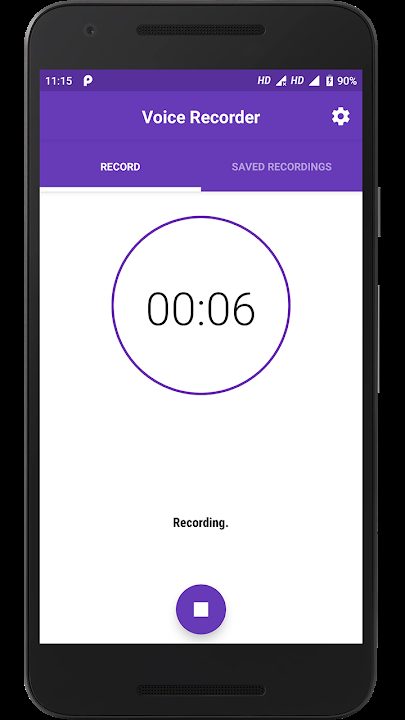

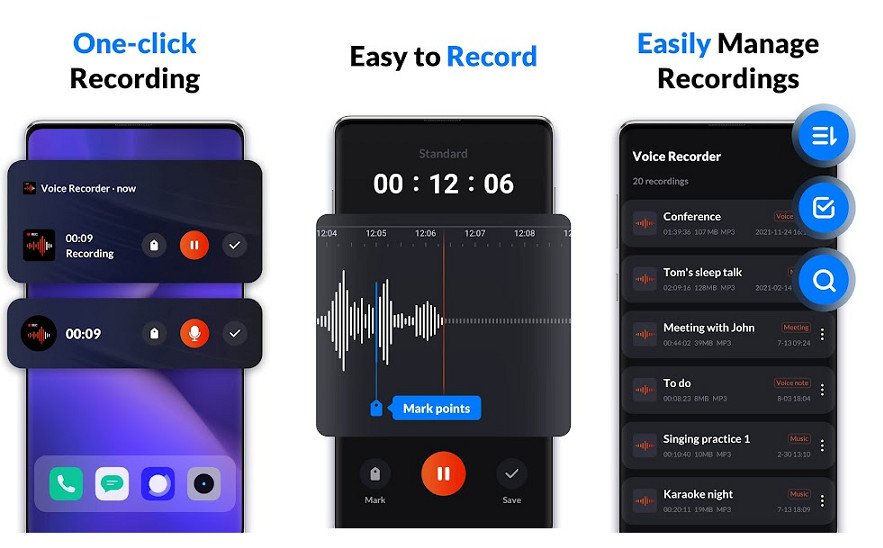
Free voice recorder apps for Android allow you to record meetings, lectures, interviews, voice notes, and personal memos without paying. A good recording app should offer clear audio, simple controls, and useful organisation features.
This guide reviews what to look for in a free voice recorder app, compares important features, and provides tips for better recordings on Android devices. It covers related searches such as “ボイスレコーダーアプリ 無料 android” and “録音アプリ android.”
Quick answer: Many Android phones already include a free voice recorder: Google's Recorder app on Pixel phones offers on-device transcription, and Samsung Galaxy phones include Samsung Voice Recorder. If your phone has no good built-in app, popular free options on Google Play include Easy Voice Recorder and ASR Voice Recorder. Choose an app with clear audio, background recording, flexible export formats and few ads, and test it before an important recording.
Why Use a Voice Recorder App on Android?
Voice recorder apps are useful for:
- Recording lectures and classes
- Capturing meeting discussions
- Creating voice notes and reminders
- Interviewing people
- Recording ideas on the go
- Saving audio for later transcription
Android users have many free options available directly from the Google Play Store.
Key Features to Look for in a Free Voice Recorder App
- Clear, high-quality audio recording
- Simple one-tap recording controls
- Ability to pause and resume
- Organised file management and naming
- Different audio formats (MP3, WAV, etc.)
- Background recording capability
- Basic editing or trimming tools
- No excessive ads
How to Choose the Right Free Recorder App
- Check recent user reviews and ratings.
- Test audio quality with a short recording.
- Confirm the app works well in the background.
- Look at storage and export options.
- Review permissions the app requests.
- Ensure it receives regular updates.
Tips for Better Voice Recordings on Android
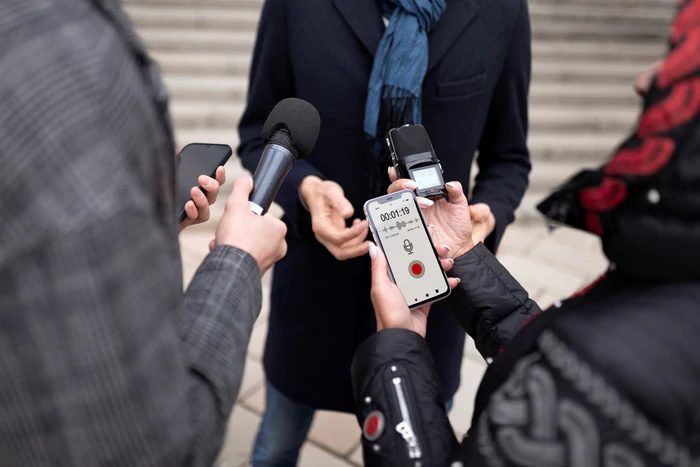
- Record in a quiet environment
- Hold the phone at a consistent distance from the speaker
- Use headphones with a microphone for interviews when possible
- Avoid covering the microphone with your hand
- Test different apps to compare clarity
- Transfer important recordings to cloud storage or a computer
- Label files immediately after recording
Common Limitations of Free Recorder Apps
- Advertisements during use
- Limited advanced editing features
- Lower maximum recording quality on some apps
- Occasional background recording restrictions on newer Android versions
- Storage limits or watermarks in free versions
- Battery usage during long recordings
Free vs Paid Voice Recorder Apps
| Feature | Free Apps | Paid Apps |
|---|---|---|
| Audio quality | Good | Often higher |
| Ads | Common | Usually removed |
| Editing tools | Basic | More advanced |
| Cloud backup | Limited | Better integration |
| Customer support | Minimal | Available |
Best Practices for Long-Term Use
- Regularly back up important recordings
- Organise files into folders by date or topic
- Delete unnecessary recordings to save space
- Keep the app updated
- Check storage permissions if recordings fail to save
- Consider a paid app if you record professionally or frequently
Built-in Recorder Apps vs Downloaded Apps
| Option | Where you find it | Strengths | Things to check |
|---|---|---|---|
| Google Recorder | Pre-installed on Google Pixel phones | Live transcription, searchable recordings, works offline | Only available on Pixel devices |
| Samsung Voice Recorder | Pre-installed on Samsung Galaxy phones | Recording modes, integration with Samsung apps | Features vary by model |
| Other phone makers' recorders | Pre-installed on many Android phones | No download needed, simple | Export and editing features vary |
| Easy Voice Recorder | Google Play | Simple interface, widget, free version available | Some features require the paid upgrade |
| ASR Voice Recorder | Google Play | Several file formats, playback speed controls, cloud upload options | Free version includes ads |
App features change with updates, so check the current Google Play listing and recent reviews before relying on a specific feature.
Audio Formats Explained
| Format | File size | Quality | Best for |
|---|---|---|---|
| M4A (AAC) | Small | Good | Everyday voice notes, lectures |
| MP3 | Small | Good | Sharing and playback on almost any device |
| WAV | Large | Uncompressed, highest detail | Editing, music, professional transcription |
| FLAC | Medium | Lossless compression | High-quality archiving with smaller files than WAV |
| OGG | Small | Good | Efficient storage where supported |
For speech, compressed formats such as M4A or MP3 are usually enough. Choose WAV or FLAC if you plan to edit the audio or need the best possible quality.
Recommended Settings for Different Situations
| Situation | Suggested settings |
|---|---|
| Voice memos | M4A or MP3, standard quality |
| Lectures and talks | Higher bitrate, phone placed near the speaker, gain adjusted if available |
| Interviews | Interview mode if your app has it, or a lapel microphone |
| Music practice | WAV or FLAC, lower input gain to avoid distortion |
| Long meetings | Compressed format to save storage, phone plugged in or fully charged |
How to Record on Android: Step by Step
- Open your recorder app and allow microphone access when asked.
- Choose the recording quality or format in settings if needed.
- Place the phone on a stable surface with the microphone pointing towards the speaker.
- Tap the record button and check that the sound level meter is moving.
- Pause and resume if there are breaks.
- Tap stop, then name the file immediately with the date and topic.
- Back up important recordings to cloud storage or a computer.
Making Background Recording Reliable
Android includes battery saving features that can stop apps running in the background. To avoid losing a recording:
- Keep the app's recording notification visible, as Android requires apps to show a notification while recording in the background.
- Exclude the recorder app from battery optimisation in Settings, then Apps, then Battery.
- Turn off aggressive power saving modes during long recordings.
- Do a short test recording with the screen off before an important session.
Recording with an External Microphone
For better sound quality, especially for interviews, podcasts or lectures from the back of a room:
- Wired lapel microphones with a USB-C or 3.5 mm connector are inexpensive and clip onto clothing.
- Wireless microphone kits give freedom of movement for video and interviews.
- USB microphones can work with Android using USB-C or an adapter.
Check that your recorder app lets you choose the external microphone as the input.
Transcribing Your Recordings
Google Recorder on Pixel phones transcribes speech as you record. For other phones, you can:
- Use a recording app with built-in speech-to-text, if available on your phone
- Upload the file to a transcription service
- Use Google Docs voice typing on a computer while playing the recording
Always proofread transcripts, especially names, numbers and technical terms.
Privacy and Legal Considerations
- Tell people when you are recording them and get their agreement, as consent rules differ between countries.
- Check which permissions an app requests. A voice recorder needs the microphone and storage, but rarely needs your contacts or location.
- Read the privacy policy for apps that upload recordings to the cloud.
- Delete recordings you no longer need, particularly if they contain personal information.
Common Problems and Fixes
- Recording stops after a few minutes: remove the app from battery optimisation.
- Quiet or muffled sound: move the phone closer, remove a thick case covering the microphone or use an external microphone.
- Distorted sound: move away from loud sources or lower the input gain.
- Running out of storage: use a compressed format, move old files to cloud storage or a computer.
- Cannot find the file: check the app's own library, then the Recordings or Music folder in your file manager.
Key Takeaways
- Many high-quality free voice recorder apps are available for Android.
- Audio clarity, ease of use, and file management are the most important features.
- Quiet environments and proper microphone technique improve results.
- Free apps are sufficient for most personal and educational needs.
- Regular backups protect valuable recordings.
- Check for a built-in recorder first, such as Google Recorder on Pixel or Samsung Voice Recorder on Galaxy phones.
- Exclude your recorder from battery optimisation to keep background recordings running.
Frequently Asked Questions
What is the best free voice recorder app for Android?
The best app depends on your needs. Look for high ratings, clear audio, and recent updates. Testing two or three apps is recommended.
Can I record in the background with free apps?
Many free apps support background recording, but Android battery optimisation settings may need adjustment.
Do free voice recorder apps have time limits?
Most do not limit recording length, but storage space on your device will eventually become the limiting factor.
Are voice recordings private on free apps?
Reputable apps store recordings locally. Always review the privacy policy and avoid apps that request unnecessary permissions.
Does Android have a built-in voice recorder?
Most Android phones include a voice recorder app from the manufacturer. Google Pixel phones have Google Recorder, which also transcribes speech, and Samsung Galaxy phones include Samsung Voice Recorder. If your phone does not have one, you can download a free recorder from Google Play.
What is the best audio format for voice recordings?
For everyday speech, M4A (AAC) or MP3 gives good quality with small files. If you need to edit the audio, transcribe difficult recordings or keep the highest quality, use WAV or FLAC. These lossless formats create larger files, so check you have enough storage before long sessions.
How do I transfer recordings from Android to a computer?
You can share recordings to Google Drive or another cloud service and download them on your computer, email short files to yourself, or connect your phone with a USB cable, choose file transfer mode and copy the files from the Recordings folder or the app's storage location.
Can I record a lecture for several hours on Android?
Yes, most recorder apps can record for hours, limited mainly by storage and battery. Use a compressed format, charge your phone fully or keep it plugged in, remove the app from battery optimisation and test before the lecture. Always check whether your institution allows lectures to be recorded.
Do voice recorder apps work without the internet?
Yes. Most voice recorder apps record directly to your phone's storage and work fully offline. Google Recorder can also transcribe on the device without an internet connection. You only need a connection for features such as cloud backup, sharing or online transcription services.



Leave a Reply