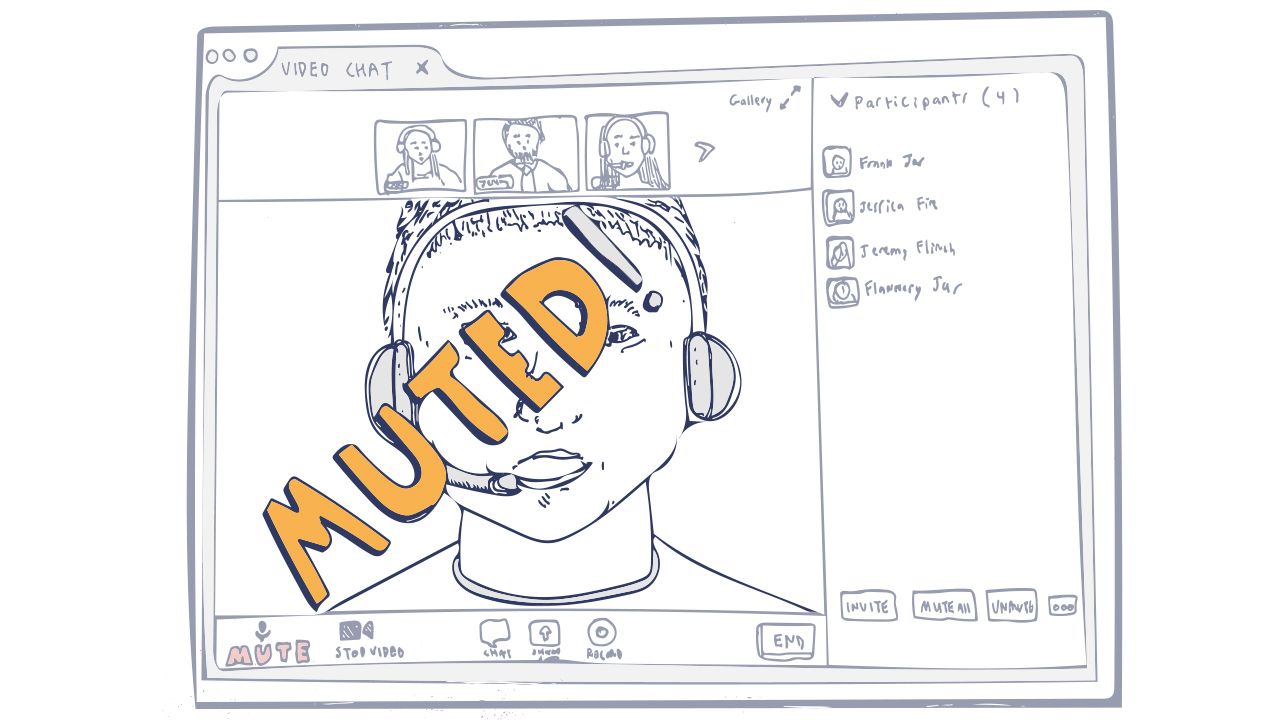

A muted microphone is usually caused by a simple setting: you muted yourself, the host muted you, the wrong mic is selected, or the app lacks permission. Start by clicking the mic icon in the meeting, then check the selected audio device and system privacy settings. Testing your mic before important calls prevents most of these problems.
A muted microphone is one of the most common problems during online meetings, calls, and recordings. When your mic is silenced, other people cannot hear you, which disrupts conversations and creates frustration. The issue can come from software settings, hardware problems, permissions, or simple mistakes. This detailed guide explains all the main reasons a microphone becomes muted and provides clear, step-by-step solutions for Zoom, Google Meet, computers, and phones.
Common Reasons Your Microphone Is Muted
- You accidentally muted yourself. Most meeting apps have a mute button that is easy to press by mistake.
- The meeting host muted you. In Zoom and some other platforms, the host can mute participants.
- Wrong microphone is selected. Your computer or app may be using a different mic than the one you are speaking into.
- System or browser permissions are blocked. The app or browser does not have permission to use the microphone.
- Hardware mute switch is on. Many headsets and laptops have a physical mute button or switch.
- Microphone is disabled in system settings. The mic may be turned off at the operating system level.
- Software conflict or outdated drivers. Another program may be controlling the microphone, or drivers need updating.
How to Unmute Your Microphone in Zoom
- Look at the bottom-left corner of the Zoom window.
- If you see a red microphone icon with a slash, you are muted.
- Click the microphone icon to unmute.
- If the host muted you, you may see a request to unmute. Click Unmute when prompted.
- If it still does not work, click the arrow next to the mic icon and select the correct microphone.
- Test your mic using the "Test Speaker & Microphone" option in settings.
How to Unmute Your Microphone in Google Meet
- Look at the bottom of the Meet window.
- Click the microphone icon if it shows as muted.
- If you cannot unmute, the host may have restricted unmuting.
- Click the three-dot menu, go to Settings, then Audio, and confirm the correct microphone is selected.
- Refresh the page or rejoin the meeting if the mic remains silent.
- Check that your browser has microphone permission for Meet.
How to Fix a Muted Microphone on Windows
- Right-click the speaker icon in the taskbar.
- Select Open Sound settings.
- Under Input, make sure the correct microphone is chosen.
- Click Device properties and ensure the mic is not disabled.
- Go to Privacy and security, then Microphone, and allow apps to access the microphone.
- Restart the meeting app after making changes.
How to Fix a Muted Microphone on Mac
- Open System Settings.
- Go to Sound and select the Input tab.
- Choose the correct microphone and check the input level.
- Go to Privacy and Security, then Microphone, and enable access for your browser or meeting app.
- Quit and reopen the application.
How to Fix Microphone Issues on Phones and Headsets
- Check for a physical mute switch on the headset or laptop.
- Unplug and reconnect the headset.
- Try a different pair of headphones to test.
- On phones, ensure the meeting app has microphone permission in system settings.
- Restart the device if the mic remains muted after other fixes.
Browser Permission Fixes for Chrome and Edge
- Click the lock or settings icon in the address bar.
- Find Microphone permissions.
- Change the setting to Allow.
- Refresh the page and rejoin the meeting.
- If needed, clear site permissions and allow them again.
Advanced Troubleshooting Steps
- Update your audio drivers.
- Close other programs that might be using the microphone (such as Discord or recording software).
- Test the microphone in another app (for example, Voice Recorder) to see if the problem is system-wide.
- Restart your computer.
- Reinstall the meeting application if the issue persists only in one program.
- Try joining the meeting from a different browser or device.
Prevention Tips
- Check your microphone status before every important meeting.
- Use a dedicated headset for more reliable audio.
- Keep meeting apps and system software updated.
- Learn the keyboard shortcut for mute and unmute in your main meeting platform.
- Ask someone to confirm they can hear you at the start of the call.
Key Takeaways
- A muted microphone is usually caused by a simple setting, wrong device selection, or missing permission.
- Always check the mute button inside the meeting app first.
- Verify system and browser microphone permissions.
- Test with another device or headset to isolate hardware problems.
- Most mute issues can be fixed in a few minutes with the steps above.
Official resources: Zoom Support Center Google Meet Help Center
Frequently Asked Questions
Why is my microphone muted in Zoom even after I click unmute?
The host may have muted you, the wrong microphone is selected, or the app lacks system permission. Check all three.
How do I know which microphone is being used?
In Zoom or Meet, click the arrow next to the microphone icon to see and change the active device.
My mic works in other apps but not in the meeting. What should I do?
This is usually a permission or app-specific setting. Allow microphone access for that browser or application and restart it.
Can a meeting host unmute me without permission?
In most cases, the host can request that you unmute, but you must approve it. Some organizational accounts have different policies.
What if none of the fixes work?
Try a different headset, another computer, or a different meeting platform to determine whether the problem is with your device or the specific app.




Leave a Reply