
Chrome audio capture allows you to record sound playing in the Google Chrome browser, such as music, videos, webinars, or online meetings. Several built-in and third-party methods make it possible to save browser audio for later use. This guide explains the best ways to capture audio from Chrome, compares different tools, and covers important settings and limitations. Quick answer: The simplest way to capture audio from Chrome is to use a web-based recorder or screen recorder that asks to share your screen, choose the Chrome Tab option, select the tab playing the sound and make sure Also share tab audio is switched on. For audio from the whole computer, use a desktop tool such as OBS Studio or Audacity instead.
What Is Chrome Audio Capture?
Chrome audio capture is the process of recording audio that is playing inside the Google Chrome browser. This can include:
- YouTube or streaming videos
- Online meetings and webinars
- Music from web players
- Browser-based games or applications
- Educational content
The recorded audio can be saved as a file for offline listening or further editing.
Methods to Capture Audio from Chrome
Built-in Chrome Tab Capture
Chrome allows you to share a tab and include its audio when using certain extensions or screen recording tools.
Browser Extensions
Several Chrome extensions are designed specifically for audio capture. They can record tab audio directly without capturing your entire screen.
System Audio Recording Software
Desktop applications can record system audio, which includes sound coming from Chrome. This method works even if the browser itself has no built-in recorder.
Online Meeting Tools
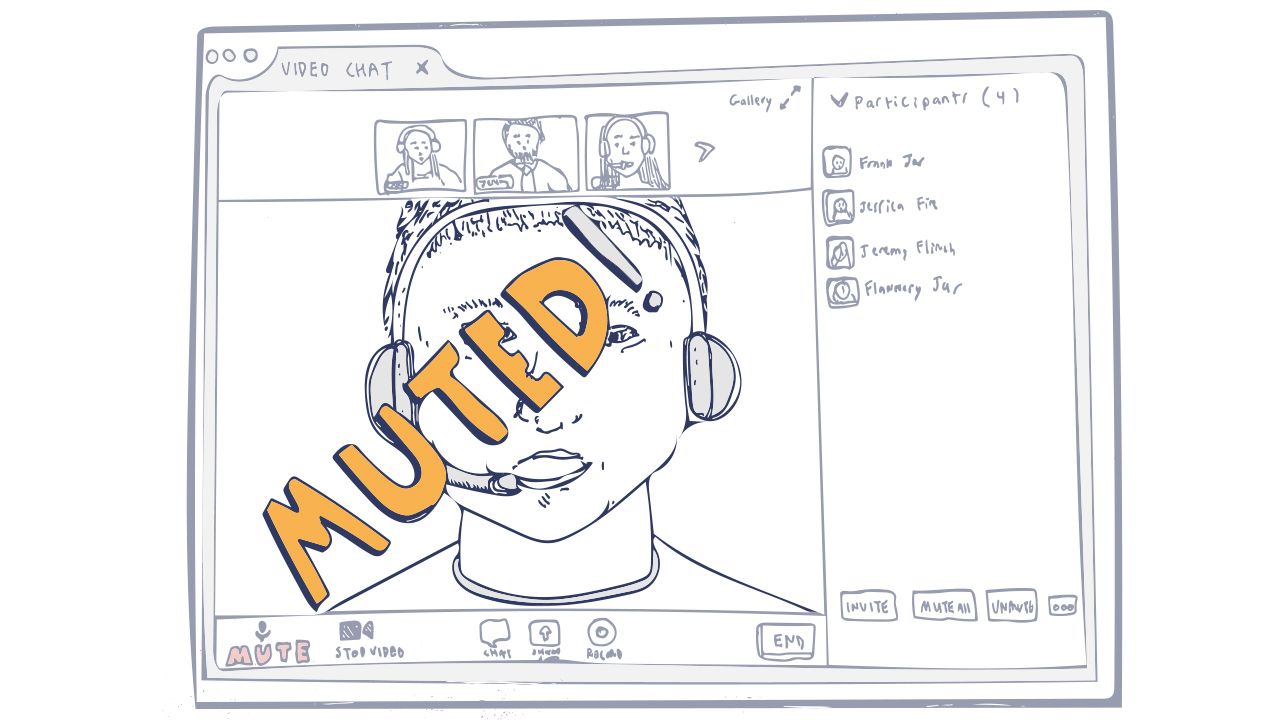
Some video conferencing platforms allow you to record meetings, which captures both system and microphone audio.
Step-by-Step: Capturing Audio with a Chrome Extension
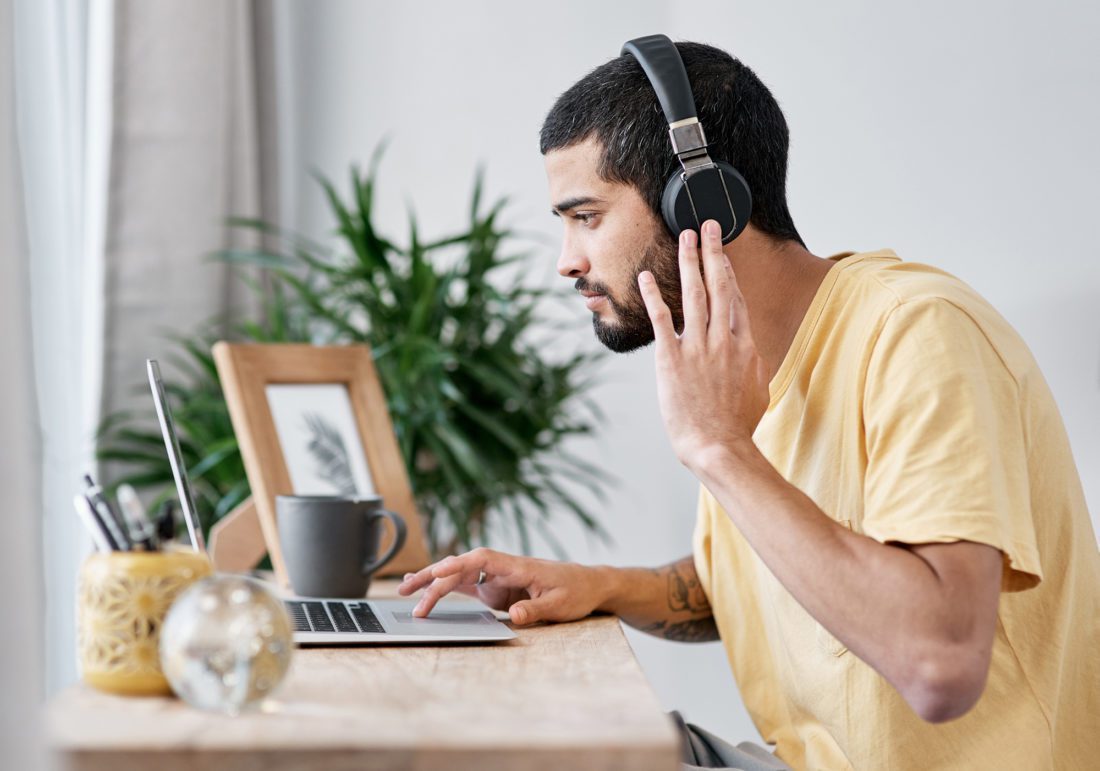
- Install a reputable audio capture extension from the Chrome Web Store.
- Open the tab you want to record.
- Click the extension icon and select the tab.
- Start recording.
- Play the audio or video.
- Stop the recording when finished.
- Download or save the audio file.
Important Settings for Better Quality
- Choose a higher bitrate if the tool allows it
- Record in a quiet environment if using a microphone
- Close unnecessary tabs to reduce browser load
- Test a short recording before capturing long content
- Check output format (MP3, WAV, etc.) based on your needs
Limitations of Chrome Audio Capture
- Some websites block audio capture for copyright reasons
- Browser updates can occasionally affect extension compatibility
- System-wide recording may capture unwanted sounds
- Very long recordings can create large file sizes
- Quality depends on the original audio source
Legal Considerations
Recording audio from copyrighted content without permission may violate copyright law. Always ensure you have the right to record and use the audio, especially for commercial or public distribution.
Tips for Cleaner Recordings
- Use headphones to avoid feedback if recording with a microphone
- Disable system notifications during recording
- Prefer tab-specific capture over full system recording when possible
- Trim and edit the file afterward if needed
- Save recordings in a lossless format if you plan to edit them
The Built-In Method: Sharing a Tab with Audio
Chrome has a built-in way for websites to receive a tab's sound, and it works without installing any extension. It uses the same dialog Chrome shows when you share your screen in a video call.
- Open the tab that plays the audio, such as a video, a lecture or a web-based meeting.
- In another tab, open a web recorder or transcription tool that supports tab capture and press its record or share button.
- In the Chrome sharing dialog, select the Chrome Tab option.
- Click the tab you want to capture.
- Check that the Also share tab audio toggle at the bottom of the dialog is turned on.
- Click Share. Chrome switches to the selected tab and shows a sharing indicator.
- Play the audio, then return to the recorder and press Stop when finished.
- Save the file in the format the tool offers, such as WAV, MP3 or WebM.
The tab keeps playing normally while it is being captured, because Chrome sends a copy of the audio to the recording site rather than diverting it.
Tab Audio vs System Audio: What Chrome Can Share
| Option in the share dialog | What is captured | Notes |
|---|---|---|
| Chrome Tab with tab audio on | Sound from that one tab only | Works on Windows, Mac, Linux and ChromeOS |
| Entire screen with system audio on | All sound from the computer | Available on Windows and ChromeOS, not on Mac |
| Window | Picture of a window only | No sound is shared from windows |
| On a Mac, Chrome's share dialog offers audio for tabs only. To record sound from the whole computer on a Mac, you need a desktop application with system audio support or a virtual audio driver. |
Why Many Older Extensions Stopped Working
Chrome extensions moved to a newer platform called Manifest V3, which changed how extensions run in the background. Several older audio capture extensions were built on features that no longer exist in the same form and were abandoned rather than updated. Before installing an extension, check:
- When it was last updated in the Chrome Web Store
- Whether recent reviews mention silent or broken recordings
- What permissions it asks for, since capture extensions can see the content of tabs
- Whether the developer has a clear privacy policy
Modern extensions use the chrome.tabCapture API, which only starts after you click the extension, and Chrome shows an indicator while capture is active.
Desktop Tools for Recording Chrome Audio
OBS Studio (Windows, Mac, Linux, free)
OBS is open-source recording and streaming software. You can add an audio source for desktop sound and record it alone or with video. It is a strong choice when you need long recordings or want to mix several audio sources.
Audacity (Windows, Mac, Linux, free)
On Windows, Audacity can record computer playback by choosing the Windows WASAPI audio host and selecting the loopback version of your speakers or headphones as the recording device. On a Mac, Audacity needs a virtual audio device to capture system sound. Virtual audio drivers on Mac Free tools such as BlackHole create a virtual audio device. You route Chrome's output to it and then select it as the input in your recorder. A multi-output device in the Mac Audio MIDI Setup app lets you hear the sound while recording.
Xbox Game Bar (Windows)
Pressing Windows key + G opens Game Bar, which can record a video of an app with its audio. It is quick, but it records video files and does not work on the desktop itself.
Choosing the Right Method
- One tab, quick job: Use the built-in tab sharing method with a web recorder.
- Meeting in the browser: Use the meeting platform's own recording feature where available, as it records all participants cleanly and informs them that recording is on.
- Everything the computer plays: Use OBS or Audacity on Windows, or a virtual audio driver on Mac.
- Editing afterwards: Record in WAV for the best quality, then export to MP3 when the edit is finished.
- Transcription: Many web transcription tools accept tab audio directly, so you get text without saving an audio file first.
Troubleshooting Silent or Poor Recordings
The recording is silent The most common cause is that Also share tab audio was turned off in the share dialog. Start again and check the toggle before clicking Share. Also make sure you picked a tab, not a window. The audio cuts out when switching tabs Some sites pause playback in background tabs. Keep the source tab playing, or place it in a separate window. Only my microphone was recorded The tool may be set to use your microphone as input. Check its settings and choose tab or system audio. The sound is distorted or too quiet Set the source volume to a normal level before recording, and avoid raising your system volume to maximum, which can cause clipping in some setups. A streaming service records nothing Some services use digital rights management (DRM) to protect content, which can block or silence capture. This is intentional and should be respected.
Best Practices for Clean Chrome Recordings
- Close other tabs that might play notification sounds or adverts.
- Turn off system notification sounds while recording.
- Use headphones if you are also recording your microphone, to prevent echo.
- Run a 10 second test and play it back before capturing anything important.
- Choose WAV or another lossless format for anything you plan to edit.
- Name and date files straight away so recordings are easy to find later.
Key Takeaways
- Chrome audio capture lets you record sound playing in the browser.
- Extensions and system recording tools are the most common methods.
- Quality depends on the source audio and the recording tool used.
- Always check copyright rules before recording protected content.
- Testing settings beforehand improves results.
- Chrome's own share dialog can capture a tab's sound, as long as Also share tab audio is turned on.
- System-wide capture needs a desktop tool, and on a Mac it needs a virtual audio driver.
Frequently Asked Questions
Can I record audio from Chrome for free?
Yes. Several free extensions and built-in methods can capture Chrome audio, though paid tools often offer higher quality and more features.
Does Chrome have a built-in audio recorder?
Chrome does not have a simple one-click audio recorder, but it supports tab audio sharing that works with extensions and recording software.
Why is my Chrome audio capture silent?
This can happen if the extension does not have permission, the tab audio is muted, or the website blocks capture. Check permissions and try a different tool.
Can I capture audio from online meetings in Chrome?
Yes, using meeting platform recording features or system audio capture tools, depending on the platform’s settings.
How do I record audio from a Chrome tab without an extension?
Open a web recorder that supports screen or tab sharing, press record, choose the Chrome Tab option, pick the tab and keep Also share tab audio switched on. Chrome sends a copy of that tab's sound to the recorder, which saves it as a file when you press stop.
Can I capture Chrome audio on a Mac?
Yes, for single tabs. Chrome on Mac can share a tab's audio through its share dialog. It cannot share whole-system audio, so to record sound from several apps or the entire computer you need a desktop recorder together with a virtual audio driver such as BlackHole.
Is it legal to record audio from a website?
Recording for personal use, such as saving your own meeting or a lecture you are allowed to keep, is usually fine. Redistributing copyrighted music, films or paid courses without permission is not. For meetings, inform participants before recording, as consent rules vary between countries.
What format should I save Chrome audio in?
Save in WAV or another lossless format if you plan to edit, transcribe or archive the recording, because it keeps full quality. Choose MP3 when you need a smaller file for sharing or listening, ideally exporting from a lossless master after editing.




Leave a Reply