

You can record a Zoom meeting as the host using the Record button – choose local recording to save the file on your computer, or cloud recording on paid plans to store it online. Participants can only record if the host grants permission. Zoom notifies everyone when recording starts, and recordings are usually ready within minutes after the meeting ends.
Recording a Zoom meeting allows you to keep an accurate record of discussions, decisions, presentations, and training sessions. This comprehensive guide explains every practical way to record Zoom meetings, where the files are saved, permission requirements, and best practices for high-quality recordings.
Can You Record Zoom Meetings?
Yes. Zoom provides built-in recording features. However, the options available to you depend on your role in the meeting and your account type.
- Hosts can usually record freely.
- Participants can record only if the host grants permission.
- Free accounts have some limitations compared with paid plans.
- Local recording and cloud recording are the two main methods.
How to Record a Zoom Meeting as the Host (Local Recording)
Local recording saves the file directly to your computer.
- Start or join the Zoom meeting as the host.
- Click the Record button at the bottom of the Zoom window.
- Choose Record on this Computer.
- A recording indicator will appear.
- Conduct the meeting normally.
- Click Stop Recording or end the meeting.
- Zoom will convert the recording after the meeting ends.
- The file will open or appear in your designated folder.
Default save location (Windows and Mac): Documents, inside the Zoom folder. You can change the save location in Zoom settings.
How to Use Cloud Recording (Paid Plans)
Cloud recording saves the meeting to Zoom's servers. This is useful when you want easy sharing or do not want to use local storage.
- Start the meeting as the host.
- Click Record.
- Select Record to the Cloud.
- Stop recording when finished.
- After processing, Zoom sends an email with the link.
- You can also find the recording in your Zoom web portal under Recordings.
Cloud recording requires a paid Zoom plan in most cases.
How to Allow Participants to Record
If you are the host and want someone else to record:
- During the meeting, open the Participants panel.
- Hover over the participant's name.
- Click More.
- Select Allow to Record.
- The participant can then start their own local recording.
You can revoke this permission at any time.
Can You Record a Zoom Meeting Without Being the Host?
Participants cannot record unless the host gives permission. If you need a recording and are not the host:
- Ask the host to grant recording permission.
- Ask the host to record and share the file later.
- Use a third-party screen recorder only if permitted by the host and local laws.
Where Are Zoom Recordings Saved?
Local recordings are saved on the computer of the person who recorded. Check the Zoom folder inside Documents, or open Zoom settings to see the exact path.
Cloud recordings are stored in your Zoom account. Access them by logging into the Zoom website and going to the Recordings section. A shareable link is also emailed to the host.
Audio and Video Settings for Better Recordings
- Encourage participants to use headsets to reduce echo.
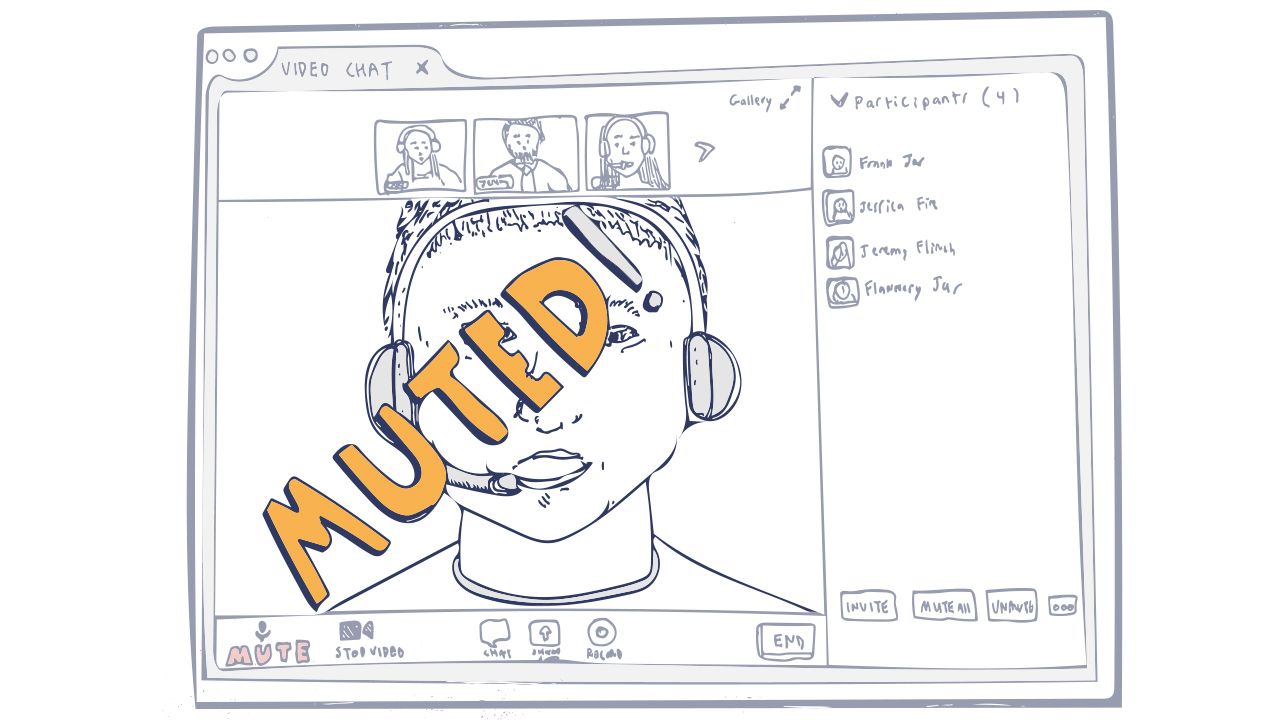
- Mute participants who are not speaking.
- Record in Gallery view or Speaker view depending on your needs.
- Enable "Record separate audio file for each participant" in settings if you need clean individual tracks.
- Test recording before important meetings.
Legal and Etiquette Considerations
- Inform all participants that the meeting is being recorded.
- In many regions, consent is required before recording.
- Do not share recordings publicly without permission.
- Follow your organization's data retention and privacy policies.
- Stop recording if sensitive personal information is being discussed and recording is not appropriate.
Common Problems and Fixes
Record Button Is Missing
You may not be the host, or the host has not given you permission. Cloud recording may also be unavailable on free plans.
Recording File Is Not Appearing
Local recordings need time to convert after the meeting ends. Wait a few minutes and check the Zoom folder. Restart Zoom if necessary.
No Sound in the Recording
Check that system audio or participant audio was enabled. Test with a short recording.
Cloud Recording Not Available
Upgrade to a paid plan or use local recording instead.
Best Practices for Zoom Recording
- Announce at the start that the meeting will be recorded.
- Decide in advance whether you need local or cloud recording.
- Assign one person to manage the recording.
- Use clear file names that include the date and topic.
- Back up important recordings.
- Delete old recordings to manage storage.
- Share links only with people who need access.
Key Takeaways
- The main way to record a Zoom meeting is by using the built-in Record button as the host.
- Local recording saves to your computer; cloud recording saves online (usually on paid plans).
- Participants need host permission to record.
- Always inform attendees when recording.
- Check Zoom settings to control save location and recording options.
Official resources: Zoom Support Center
Frequently Asked Questions
How do I record a Zoom meeting on a free account?
Use local recording. Click Record and choose “Record on this Computer.” Cloud recording is generally limited to paid plans.
Where can I find my Zoom recording after the meeting?
Local files are in the Zoom folder inside Documents. Cloud recordings are in your Zoom web account and linked in an email.
Can I record a Zoom meeting if I am not the host?
Only if the host gives you permission. Otherwise, ask the host to record and share the file.
Does Zoom notify participants when recording starts?
Yes. Zoom displays a notification to all participants when recording begins.
How long does it take for a Zoom recording to be ready?
Local recordings are usually ready within a few minutes after the meeting. Cloud recordings can take longer depending on length.



Leave a Reply