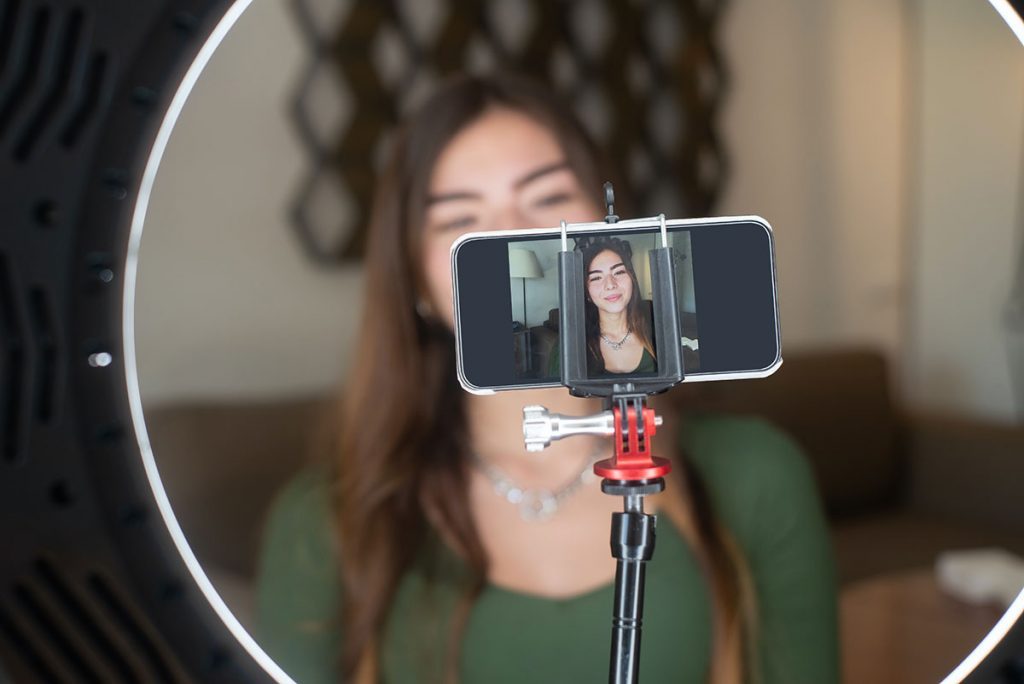

Recording YouTube videos is useful for offline viewing, educational purposes, presentations, or personal archives. Several methods exist, ranging from built-in browser tools to dedicated screen recording software.
This guide explains the main ways to record YouTube videos, compares different approaches, and covers important limitations and legal considerations. It also addresses related searches about YouTube recording methods.
Quick answer: To record a YouTube video on a computer, use a screen recorder such as the Xbox Game Bar or Snipping Tool on Windows, the Screenshot toolbar or QuickTime Player on a Mac, or the free OBS Studio on either. On a phone, use the built-in screen recorder on iPhone or Android. Make sure system audio is enabled, play the video, and stop recording when it ends. Only record for personal use or with the creator’s permission.
Can You Record YouTube Videos?
Yes. You can record YouTube videos using screen recording tools on computers and mobile devices. The quality and ease of recording depend on the method and device you use.
Best Methods to Record YouTube Videos
1. Built-in Screen Recording (Computer)
Windows and macOS include free screen recording tools that can capture YouTube playback along with system audio.
2. Browser Extensions
Chrome and other browsers have extensions that can record the current tab, including YouTube videos.
3. Dedicated Screen Recording Software
Programs such as OBS Studio, ShareX, or similar tools offer higher quality and more control.
4. Mobile Screen Recording
Both Android and iPhone have built-in screen recorders that can capture YouTube playback.
Step-by-Step: Record YouTube on a Computer
- Open the YouTube video in your browser.
- Start your screen recording tool.
- Select the browser window or full screen.
- Enable system audio recording.
- Play the video.
- Stop the recording when finished.
- Save and edit the file if needed.
Tips for Better YouTube Recordings
- Record in a quiet environment if capturing microphone audio
- Use full-screen mode for cleaner capture
- Choose higher resolution settings in your recorder
- Pause notifications to avoid interruptions
- Test a short recording first
- Ensure a stable internet connection for smooth playback
Limitations and Considerations
- Recording quality depends on your device and software
- Some videos may have playback restrictions
- Long recordings create large file sizes
- Audio sync issues can occur with certain tools
- Copyright rules apply to recorded content
Legal Note on Recording YouTube Videos
Recording YouTube videos for personal offline use is common, but redistributing or publicly sharing copyrighted content without permission may violate copyright law. Always respect the creator’s rights and YouTube’s terms of service.
Built-in Screen Recorders by Device
| Device | Built-in tool | How to start | System audio |
|---|---|---|---|
| Windows 10 and 11 | Xbox Game Bar | Press Windows + G, then use the Capture widget | Yes, records audio from the app |
| Windows 11 | Snipping Tool | Open Snipping Tool and choose the video option | Yes, in recent versions |
| Mac | Screenshot toolbar | Press Shift + Command + 5 | Microphone only by default |
| Mac | QuickTime Player | File, then New Screen Recording | Microphone only by default |
| iPhone and iPad | Screen Recording in Control Centre | Add it to Control Centre, then tap the record button | Yes, app audio |
| Android | Screen recorder in Quick Settings | Swipe down and tap Screen record | Yes, on most recent phones |
How to Record YouTube on Windows
Using Xbox Game Bar
- Open the YouTube video in your browser.
- Press Windows + G to open Game Bar.
- In the Capture widget, check that audio recording is on.
- Click the record button or press Windows + Alt + R.
- Play the video, then stop recording when it finishes.
- Find the recording in your Videos folder, inside Captures.
Game Bar records a single app window rather than the whole desktop, so keep the browser in focus.
Using Snipping Tool on Windows 11
- Open Snipping Tool and switch to the video recording mode.
- Select the area of the screen that contains the video.
- Turn on system audio if the option is shown.
- Start recording, play the video, and stop when done.
- Save the file.
How to Record YouTube on a Mac
- Press Shift + Command + 5 to open the Screenshot toolbar.
- Choose to record the entire screen or a selected portion.
- Click Options to choose where the file will be saved.
- Click Record, play the YouTube video, then click the stop button in the menu bar.
Mac’s built-in tools record the microphone but not the computer’s internal sound by default. To capture system audio, many people use OBS Studio, which supports desktop audio capture on recent versions of macOS.
How to Record YouTube with OBS Studio
OBS Studio is free, open-source software for Windows, macOS, and Linux. It takes a few minutes to set up but gives the most control.
- Download OBS Studio from its official website and install it.
- Under Sources, add a Window Capture or Display Capture source and select your browser.
- Check that Desktop Audio is active in the Audio Mixer.
- Go to Settings, then Output, and choose your recording format and quality.
- Click Start Recording, play the video, and click Stop Recording when finished.
Recording in a format such as MKV can protect your file if the recording is interrupted, and OBS can convert it to MP4 afterwards.
How to Record YouTube on iPhone and Android
iPhone or iPad
- Go to Settings and make sure Screen Recording is added to Control Centre.
- Open YouTube and find your video.
- Open Control Centre and tap the Screen Recording button.
- Wait for the countdown, then play the video.
- Tap the red indicator at the top of the screen to stop. The video is saved to Photos.
Android
- Swipe down twice to open Quick Settings.
- Tap Screen record. If you cannot see it, edit the Quick Settings tiles to add it.
- Choose to record media sounds or device audio.
- Start recording and play the video.
- Stop from the notification. The file is saved to your gallery.
The exact steps vary slightly between phone makers.
Official Alternatives to Recording
Before recording, check whether an official option meets your needs:
- YouTube Premium downloads let you save videos for offline viewing in the YouTube app, where available.
- Creators’ own downloads: some creators share files or links to their content elsewhere.
- Saving to playlists or Watch Later keeps videos easy to find when you are online again.
YouTube’s Terms of Service restrict downloading content except where YouTube provides a download option or you have permission, so official features are the safest route.
Recording Your Own Videos for YouTube
Some people searching for how to record YouTube videos want to make videos for their own channel. The basics are:
- Choose your format: talking to camera, screen tutorials, gameplay, or voiceover with images.
- Use your phone or webcam to start; modern phones record good quality video.
- Prioritise audio with a simple external microphone, as viewers tolerate average video more than poor sound.
- Light your face with a window or a soft light in front of you.
- Record screen tutorials with OBS Studio or your system’s screen recorder, adding your microphone.
- Edit and upload using a free editor, then upload through YouTube Studio with a clear title, description, and thumbnail.
Common Problems and Fixes
- No sound in the recording: turn on system or desktop audio in your recorder, and check that the video was not muted.
- Black screen: some protected content cannot be captured. Turning off hardware acceleration in your browser may help for ordinary videos, but respect any protection in place.
- Choppy recording: close other apps, lower the recording resolution or frame rate, and play the video at a resolution your connection can handle.
- Huge file sizes: record only the section you need, or compress the file afterwards.
- Audio out of sync: try a different recording format or recorder, and avoid running heavy programs while recording.
Best Practices for Responsible Recording
- Record only for personal, private use, such as studying or offline reference.
- Ask for permission if you want to reuse or share someone else’s content.
- Credit creators properly and link to the original video when discussing it.
- Use short clips for commentary or review only where your local copyright rules allow it.
Key Takeaways
- YouTube videos can be recorded using built-in tools, extensions, or dedicated software.
- Screen recording is the most reliable method across devices.
- Higher quality tools provide better control and output.
- Test settings before recording important content.
- Be aware of copyright limitations when using recorded videos.
- Windows, Mac, iPhone, and Android all include free built-in screen recorders.
- OBS Studio is a free option that captures system audio and offers the most control.
- YouTube Premium downloads and other official options are the safest way to watch offline.
Related Guides
- Video to Prompt: How to Convert Videos into AI Prompts
- Google Meet Background: Complete Guide to Changing and Customizing Your Background (2026)
- Sound Generator: What It Is and How to Use One for Audio Projects (2026)
Frequently Asked Questions
What is the easiest way to record a YouTube video?
Using the built-in screen recorder on your computer or phone is the simplest method for most users.
Can I record YouTube videos with audio?
Yes. Make sure system audio or internal audio recording is enabled in your screen recorder.
Is it legal to record YouTube videos?
Personal recording is generally tolerated, but sharing or commercial use of copyrighted material without permission is not allowed.
Do I need special software to record YouTube?
No. Built-in screen recording tools are sufficient for basic needs. Dedicated software offers more features.
How do I record a YouTube video with sound on a Mac?
Mac’s built-in Screenshot toolbar and QuickTime Player record microphone audio but not internal sound by default. To capture the video’s sound, use a tool that records system audio, such as the free OBS Studio, and make sure Desktop Audio is enabled before you start recording.
What is the best free YouTube screen recorder?
For most people, the built-in recorder on their device is the easiest choice: Xbox Game Bar or Snipping Tool on Windows, or Control Centre recording on iPhone. OBS Studio is the best free option for more control, including custom quality settings and system audio capture on Windows, Mac, and Linux.
Can I record YouTube videos on my phone?
Yes. iPhone and iPad include Screen Recording in Control Centre, and most Android phones have a Screen record tile in Quick Settings. Start recording, play the video, and stop when it finishes. Choose to capture media or device sound so the recording includes the video’s audio.
Why does my YouTube recording show a black screen?
A black screen usually happens when the browser uses hardware acceleration or the content is protected. For ordinary videos, turning off hardware acceleration in your browser settings or using a different capture mode often fixes it. Protected content is designed not to be captured, so respect those restrictions.





Leave a Reply