
Audio to text free tools allow you to convert spoken words from recordings, meetings, or videos into written text without paying. These tools are useful for students, content creators, professionals, and anyone who needs quick transcriptions. This guide reviews the best free audio to text options available in 2026, explains how they work, compares accuracy, and shares tips for getting better results. Quick answer: The best free ways to convert audio to text are built-in tools you already have, such as Google Docs Voice typing, Windows voice typing, Mac Dictation and the transcripts in Apple’s Voice Memos app, plus free plans from AI transcription services and open-source software such as OpenAI’s Whisper, which runs on your own computer at no cost.
What Is Audio to Text?
Audio to text (also called speech-to-text) is the process of converting spoken language in an audio or video file into written text. Modern tools use artificial intelligence and automatic speech recognition to perform this conversion quickly. Free versions usually have limits on length, accuracy, or features, but they are sufficient for many everyday needs.
Best Free Audio to Text Tools in 2026
Browser-Based Free Transcribers
Several websites let you upload audio files and receive text transcripts at no cost. These are convenient because they require no software installation.
Built-in Operating System Tools
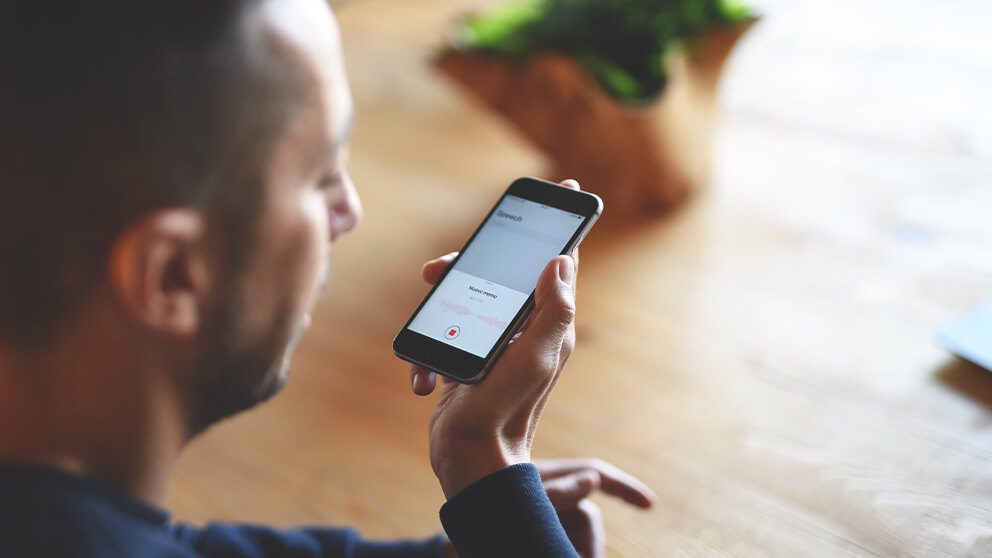
Both Windows and macOS include free dictation and transcription features that can convert speech to text in real time or from recordings.
Free Tiers of AI Transcription Services
Many AI platforms offer limited free transcription each month. These often provide higher accuracy than basic tools.
Mobile Apps with Free Plans
Some mobile apps allow free audio-to-text conversion with daily or monthly limits.
How to Convert Audio to Text for Free
- Choose a free audio to text tool or website.
- Upload your audio or video file (or record directly).
- Select the language if required.
- Start the transcription process.
- Review and edit the generated text.
- Download or copy the transcript.
Factors That Affect Accuracy
- Background noise
- Speaker clarity and accent
- Audio quality and volume
- Number of speakers
- Technical or specialised vocabulary
- Length of the recording
Clean, single-speaker audio usually produces the best results.
Limitations of Free Audio to Text Tools
- Limited minutes or file length per day/month
- Lower accuracy compared with paid plans
- Fewer editing and export features
- Possible watermarks or branding on exports
- Slower processing during peak times
- Privacy concerns with some free online services
When Free Transcription Is Enough
Free tools work well for:
- Personal voice notes
- Study materials
- Short meetings
- Draft transcripts
- Occasional use
For frequent, long, or highly accurate professional transcription, paid tools are usually more practical.
Tips for Better Free Transcription Results
- Record in a quiet environment
- Speak clearly and at a moderate pace
- Use a decent microphone when possible
- Break long recordings into smaller files
- Review and correct the transcript afterward
- Choose tools that support your language well
Free vs Paid Audio to Text
| Feature | Free Tools | Paid Tools |
|---|---|---|
| Cost | Free | Subscription or per minute |
| Accuracy | Moderate | Higher |
| Length limits | Yes | Higher or unlimited |
| Editing tools | Basic | Advanced |
| Privacy | Varies | Usually stronger |
| Speed | Slower at times | Faster |
| Speaker detection | Rare | Common |
| Support | Limited | Available |
When to Upgrade from Free to Paid
Free methods are usually enough when recordings are short, clear and occasional. Consider a paid plan or professional service when:
- You transcribe several hours every month
- You need accurate speaker labels for many voices
- Recordings are long, noisy or in mixed languages
- You need summaries, team sharing or integrations
- The transcript will be used for legal, medical or published work
Free Audio to Text Options Compared
| Option | Works with | Best for | Main limitation |
|---|---|---|---|
| Google Docs Voice typing | Live speech in Chrome | Dictating notes and drafts | Needs live audio, not file upload |
| Windows voice typing | Live speech on Windows 10 and 11 | Typing by voice in any app | Live dictation only |
| Mac Dictation | Live speech on macOS | Writing emails and documents | Live dictation only |
| Apple Voice Memos transcripts | Recordings on recent iPhones, iPads and Macs | Recorded memos and interviews | Language and device support varies |
| Google Recorder | Recordings on Google Pixel phones | Meetings and lectures on Pixel | Pixel devices only |
| Live Transcribe | Live speech on Android | Real-time captions | Designed for live use |
| Whisper (open source) | Audio and video files | Private, unlimited file transcription | Needs some technical setup |
| AI service free plans | Uploaded files and meetings | Polished transcripts with speaker labels | Monthly minute or file limits |
Built-In Tools You Already Own
Google Docs Voice typing
Open a document in Google Chrome, go to Tools > Voice typing and click the microphone. Speak clearly and Docs types as you talk. It is free with a Google account, but it listens to your microphone rather than accepting uploaded files.
Windows voice typing
Press Windows key + H in any text field on Windows 10 or 11. A small toolbar appears and your speech is typed into the active app, such as Word, Outlook or a browser.
Mac Dictation
Turn on Dictation in System Settings > Keyboard, then press the dictation shortcut in any text field. It is useful for drafting long emails or notes by voice.
Apple Voice Memos
Recent versions of iOS and macOS can show a transcript for recordings in the Voice Memos app in supported languages. This turns the app into a free recorder and transcriber for interviews, lectures and ideas. On supported iPhones, Apple’s call recording feature also saves transcripts in Notes where available.
Android options
Google’s Live Transcribe app shows real-time captions of speech around you, and Pixel phones include the Recorder app, which transcribes recordings on the device, works offline and lets you search recordings by word.
Free Open-Source Transcription with Whisper
Whisper is a speech recognition model released as open source by OpenAI in 2022. Because it runs on your own computer, it has no monthly limits and your audio never leaves your device. How people commonly use it:
- Choose an app built on Whisper if you prefer not to use the command line. Several free desktop apps wrap the model in a simple interface.
- Or install it directly using Python, following the instructions in the official repository.
- Pick a model size. Smaller models run faster on modest hardware, while larger models are more accurate but need more memory and time.
- Load your file, such as MP3, WAV or M4A, and select the language or let the model detect it.
- Export the transcript as plain text or as subtitle files such as SRT.
Whisper is a strong choice for sensitive recordings, long archives or anyone who transcribes often and wants to avoid subscription costs.
How to Choose the Right Free Tool
- You want to dictate as you speak: Use Google Docs Voice typing, Windows voice typing or Mac Dictation.
- You have a recording on your phone: Use Voice Memos transcripts on Apple devices or Recorder on a Pixel.
- You have a long file or many files: Use Whisper locally to avoid limits.
- You need speaker names and summaries: Try the free plan of an AI transcription service.
- Your audio is confidential: Prefer tools that process audio on your own device.
Getting the Most from Free Minutes
- Trim recordings first so you do not use free minutes on silence, small talk or irrelevant sections.
- Use different tools for different jobs, such as your phone for voice notes and a free online tier for interviews.
- Check the reset date of each service's monthly allowance.
- Export transcripts promptly, as some free plans limit how long files are stored.
- Avoid uploading confidential audio to free services unless you have read and accepted their privacy terms.
A Free Workflow for Student Lectures
- Ask permission to record and check your institution's rules.
- Record using your phone's built-in recorder, placed near the lecturer.
- Use the phone's transcription feature if available, or upload the file to a free tier or Whisper app.
- Skim the transcript and highlight key concepts and definitions.
- Use an AI assistant to create a short revision summary from the transcript, then check it against your slides.
- Store the recording and transcript in a folder for that module.
Step-by-Step: Transcribe a Recorded File for Free Using Google Docs
If you only have Google Docs available, you can still transcribe a recording, although the quality depends on your setup:
- Open a new document in Chrome and start Voice typing.
- Play the recording through your speakers at a clear volume, close to the microphone.
- Keep the room quiet so the microphone picks up only the recording.
- Pause playback if Docs falls behind, then resume.
- Edit the text afterwards, adding punctuation and paragraph breaks.
This workaround is slower and less accurate than uploading a file to a dedicated tool, so it is best for short recordings.
How to Prepare Audio for Better Free Transcripts
- Trim silence and unrelated sections before uploading, so you do not waste free minutes.
- Convert unusual formats to MP3 or WAV, which almost every tool accepts.
- Reduce background noise with a free editor such as Audacity.
- Normalise the volume so quiet speakers are easier to hear.
- Split very long files into smaller parts if a free plan limits file length.
Editing Your Transcript Efficiently
- Listen at a slightly faster speed while reading along to spot errors quickly.
- Search for names and technical terms, which are the words automatic tools most often get wrong.
- Add speaker labels if the tool did not, using consistent names such as “Interviewer” and “Guest”.
- Use timestamps for important moments so you can return to the audio later.
- Fix punctuation last, once the words are correct.
- Fix names, numbers and technical terms first, as these errors matter most.
- Use find and replace for words the tool consistently gets wrong.
- Mark anything you cannot hear clearly as [inaudible] with a timestamp.
- Read the final text once without audio to check that it makes sense.
- Save the corrected version with a clear file name next to the original recording.
Common Mistakes with Free Transcription
- Expecting perfect accuracy on noisy or overlapping speech
- Uploading private recordings without checking privacy terms
- Running out of free minutes on long recordings with lots of silence
- Not keeping a copy of the original recording
- Skipping the proofreading step
Privacy Checklist for Free Services
Before uploading audio to any free website, check:
- Whether files are deleted after processing, and when
- Whether your recordings may be used to train the provider’s models
- Where the data is stored and processed
- Whether you can delete your account and data
- Whether everyone in the recording has agreed to it being transcribed
For medical, legal, financial or personal recordings, a tool that runs locally is the safer choice.
Key Takeaways
- Free audio to text tools can convert speech to written text without cost.
- Accuracy depends heavily on audio quality and speaking clarity.
- Most free options have limits on length or features.
- Reviewing and editing the output is usually necessary.
- Paid tools offer better accuracy and fewer restrictions for frequent use.
- Built-in tools such as Google Docs Voice typing, Windows voice typing, Mac Dictation and Voice Memos transcripts cost nothing.
- Whisper runs locally for free with no minute limits, which suits long or private recordings.
Frequently Asked Questions
What is the best free audio to text tool?
The best option depends on your needs. Browser-based tools are convenient for occasional use, while built-in system features work well for real-time dictation.
Are free audio to text tools accurate?
Accuracy is generally good for clear, single-speaker audio but decreases with background noise, accents, or multiple speakers.
Can I convert long audio files for free?
Most free tools limit file length or daily usage. You may need to split long recordings or use a paid plan for extended transcription.
Is it safe to upload audio to free transcription websites?
Privacy policies vary. Avoid uploading sensitive or confidential recordings to unknown free services.
Can Google Docs transcribe an audio file?
Google Docs Voice typing listens to your microphone rather than accepting uploaded files. You can play a recording near the microphone as a workaround, but accuracy drops with room noise and speaker quality. For uploaded files, a dedicated transcription tool or an open-source model such as Whisper gives much better results.
Is Whisper really free?
Yes. OpenAI released Whisper as open-source software, so you can download and run it on your own computer without paying. Your costs are only the hardware and time needed to process the audio. Larger models are more accurate but need a more powerful computer, ideally with a graphics card.
How do I convert a voice recording to text on iPhone?
On recent versions of iOS, open the recording in the Voice Memos app and view its transcript, where the feature is supported for your language and device. You can then copy the text into Notes or another app. Third-party transcription apps are an alternative if your device does not support the feature.
Which free audio to text tool is most private?
Tools that process audio entirely on your own device are the most private, because the recording is never uploaded. Examples include Whisper running locally and some built-in phone and computer features. Always check the settings, as some built-in tools may send audio to online servers for processing.
Can I transcribe a phone call recording for free?
Yes, if you have the recording legally and with consent. On supported iPhones, calls recorded with Apple's built-in feature are transcribed in Notes in supported languages. Otherwise, upload the audio file to a free transcription tier or a Whisper app, then proofread the result against the recording.
Why is free transcription less accurate than paid?
Free and paid tools often use similar technology, but paid plans may include more advanced models, custom vocabulary, better speaker identification and support for difficult audio. Free methods such as voice typing through speakers also lose quality. Clear recordings help any tool, free or paid, produce better results.



Leave a Reply