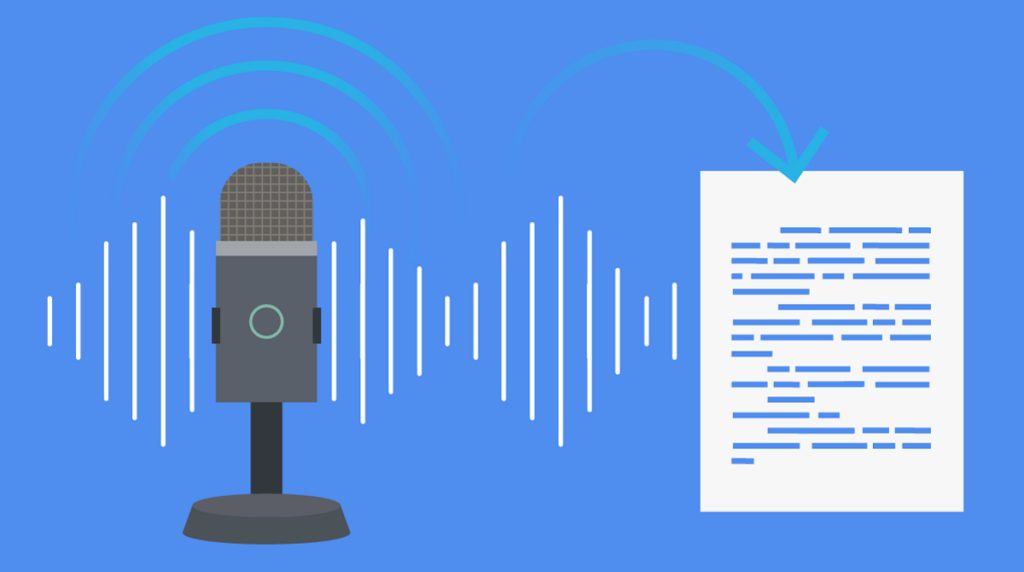

Converting speech and audio into text (文字に起こす) is a practical skill for students, professionals, and content creators. Modern tools make it possible to turn spoken words from recordings, meetings, and live speech into written documents quickly and with good accuracy.
This guide explains the best methods to convert audio and speech into text, compares available tools, and shares techniques for cleaner results.
Quick answer: 文字に起こす (moji ni okosu) means to turn spoken words into written text. You can do it live by dictating with voice typing on your phone or computer, or afterwards by transcribing a recording with an automatic speech recognition tool and then correcting the text. For most people, the fastest accurate method is an automatic first draft followed by careful human editing.
What Does 文字に起こす Mean?
文字に起こす refers to the process of converting spoken language into written text. This includes:
- Transcribing recorded audio files
- Turning live speech into text
- Creating written records from meetings or interviews
- Converting voice notes into editable documents
The goal is to produce accurate, usable text from audio sources.
Main Methods to Convert Speech into Text
- Automatic Speech Recognition (ASR) Tools
AI-powered services that convert audio to text automatically. These are the fastest and most widely used option today.
- Voice Typing Features
Built-in tools in Google Docs, Microsoft Word, and operating systems that turn live speech into text in real time.
- Professional Transcription Services
Human transcribers who listen and type. Higher accuracy but slower and more expensive.
- Hybrid Approach
Use automatic tools for the first draft, then edit manually. This is the most practical method for most people.
Step-by-Step: Convert Audio into Text
- Prepare a clear audio recording.
- Choose an automatic transcription tool.
- Upload the file or start live voice typing.
- Select the correct language.
- Generate the text.
- Review the output carefully.
- Correct errors, names, and technical terms.
- Format and save the final document.
Tips for Better Conversion from Speech to Text
- Record in a quiet place
- Speak clearly and at a steady pace
- Use a decent microphone
- Avoid background music or noise
- Break long recordings into shorter segments
- Provide context or glossaries when possible
- Always proofread the generated text
Best Situations for Converting Speech to Text
Meetings
Create accurate minutes and action item lists.
Interviews
Produce quotable, searchable records.
Lectures and Classes
Generate study notes from recorded sessions.
Content Creation
Turn spoken ideas or podcasts into written articles.
Personal Productivity
Convert voice memos into organised text notes.
Limitations to Keep in Mind
- Accuracy decreases with noise, accents, or fast speech
- Automatic tools can struggle with overlapping speakers
- Specialized terminology often needs manual correction
- Free tools usually have usage limits
- Live voice typing requires a stable internet connection for many services
Free vs Paid Options
Free tools are suitable for occasional and personal use. Paid services generally deliver higher accuracy, faster processing, speaker identification, and better support. Choose based on how often you need to convert speech into text and how important perfect accuracy is.
Related Japanese Terms
| Japanese | Reading | Meaning |
|---|---|---|
| 文字に起こす | moji ni okosu | To put speech into writing |
| 文字起こし | moji okoshi | Transcription, the noun form |
| 書き起こし | kaki okoshi | Transcription, often used for written records of talks or interviews |
| 音声入力 | onsei nyūryoku | Voice input or dictation |
| 素起こし | su okoshi | Full verbatim transcription, including fillers |
| ケバ取り | keba tori | Clean verbatim, removing fillers such as "えー" and "あの" |
| 整文 | seibun | Edited transcription, rewritten into tidy written language |
Knowing these terms helps when choosing a service or explaining what kind of transcript you need.
Dictation vs Transcription

| Dictation (live voice typing) | Transcription (from recordings) | |
|---|---|---|
| When | While you speak | After the audio is recorded |
| Speakers | Usually one person | One or many |
| Typical tools | Keyboard microphone, Google Docs voice typing, Windows voice typing, Mac dictation | Upload-based services, recorder apps, Whisper-based software |
| Best for | Writing emails, notes and drafts quickly | Interviews, meetings, lectures, videos |
| Editing | Correct as you go | Review the full text afterwards |
How Speech-to-Text Technology Works
Automatic speech recognition (ASR) systems convert sound into text in several stages:
- Audio capture: a microphone records sound waves, which are converted to digital data.
- Feature analysis: the system analyses the sound to identify patterns that correspond to speech.
- Recognition: a machine learning model, trained on large amounts of speech and text, predicts the most likely words.
- Language modelling: context helps choose between words that sound alike.
- Formatting: punctuation, capitalisation and numbers are added.
Modern systems, such as OpenAI's Whisper and the models behind phone keyboards and meeting tools, combine these steps in large neural networks, which is why accuracy has improved so much in recent years.
Special Challenges of Japanese Speech-to-Text
Japanese brings specific difficulties for automatic tools:
- Homophones: many words sound the same but use different kanji, such as 橋 (bridge), 箸 (chopsticks) and 端 (edge), all read "hashi". Context decides which is correct.
- Kanji and kana choice: the same word can be written in kanji, hiragana or katakana, and tools may not match your preferred style.
- Punctuation: automatic placement of 、 and 。 can be inconsistent and often needs editing.
- Spoken vs written style: casual speech, fillers and sentence endings may need adjusting for written documents.
- Mixed languages: English words and names inside Japanese speech are often misrecognised.
- Keigo: polite and honorific forms are long and can be shortened or misheard.
Expect to review these points carefully when you 文字に起こす Japanese audio.
How to Dictate on Your Devices
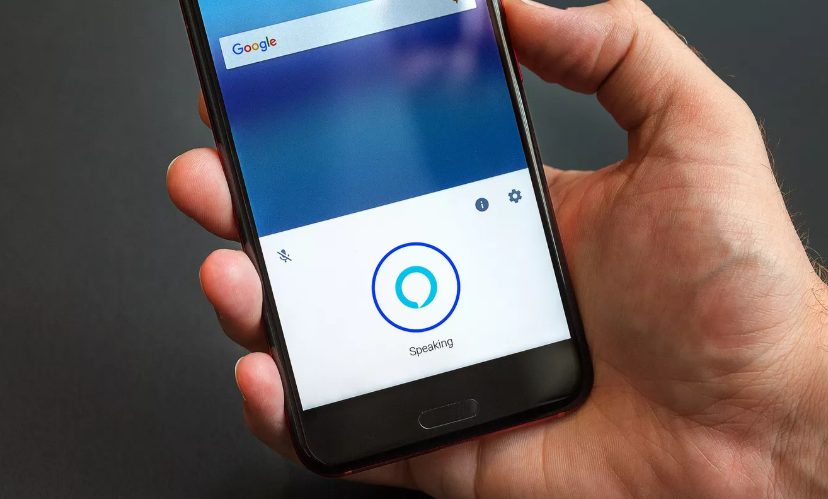
- iPhone: tap the microphone on the keyboard and speak. Dictation supports Japanese and many other languages.
- Android: tap the microphone on Gboard or your keyboard app.
- Windows: press Windows + H to start voice typing in any text field.
- Mac: turn on Dictation in System Settings under Keyboard, then use the dictation shortcut.
- Google Docs: open Tools, then Voice typing in Chrome and choose your language.
Choosing an Approach for Your Situation
| Situation | Recommended approach |
|---|---|
| Writing a quick note or message | Phone keyboard dictation |
| Drafting a long document | Voice typing in Google Docs or Windows, then edit |
| Recording a lecture | Phone recorder with transcription, then summarise |
| Interviews for an article | Automatic transcription plus careful checking of quotes |
| Business meetings | Meeting platform transcription and AI notes |
| Legal or medical records | Professional human transcription or human-checked transcripts |
Tips for Speaking Clearly to Speech-to-Text
- Speak in complete sentences at a steady pace.
- Pause briefly between ideas rather than using fillers.
- Say punctuation commands where supported, such as "comma" or "period" in English, or 「てん」 and 「まる」 in Japanese on some systems.
- Spell out or later correct unusual names.
- Use a headset microphone in noisy places.
Common Mistakes to Avoid
- Assuming automatic text is ready to publish without checking
- Using dictation for multi-speaker recordings, which need transcription tools
- Ignoring privacy when uploading recordings that contain personal information
- Choosing a tool without testing it on your own language and accent
Example: Turning a Voice Note into a Clean Document
Imagine you record a two-minute voice note with ideas for a blog post while walking.
- Transcribe it with your phone's recorder app or an online tool.
- Read the raw text. It will probably include fillers, repeated phrases and missing punctuation.
- Fix recognition errors, such as wrong kanji, misheard names or numbers.
- Remove fillers and repetition, similar to ケバ取り.
- Reorganise ideas into headings or bullet points.
- Rewrite into written style where needed, which is the 整文 stage.
In a few minutes, a spoken idea becomes a usable outline. Many people use an AI assistant for steps four to six, then check that the meaning has not changed.
Key Takeaways
- Converting speech and audio into text (文字に起こす) is straightforward with modern AI tools.
- Clear audio is the most important factor for good results.
- A combination of automatic transcription and human review works best.
- Both free and paid options are available.
- Proofreading remains essential for professional or important documents.
- 文字に起こす covers both live dictation and transcribing recordings into text.
- Japanese speech-to-text needs extra checking for homophones, kanji choice, punctuation and mixed English words.
Frequently Asked Questions
What is the easiest way to convert speech into text?
Using an AI transcription tool or built-in voice typing feature is the easiest and fastest method for most people.
How accurate is automatic conversion from speech to text?
Accuracy is high with clear, single-speaker audio and lower when there is noise or multiple speakers.
Can I convert long recordings into text?
Yes. Most tools can handle long files, though splitting them can improve speed and accuracy.
Do I still need to edit the text after conversion?
Yes. Even good automatic transcripts benefit from review to correct errors and improve readability.
What is the difference between 文字起こし and 書き起こし?
Both mean turning speech into text and are often used interchangeably. 文字起こし is the most common general term for transcription, including automatic tools, while 書き起こし is often used for written records of talks, interviews and broadcasts. In practice, either word is understood when requesting a transcript.
What is ケバ取り in transcription?
ケバ取り is a Japanese transcription style that removes fillers and hesitations, such as "えー", "あの" and repeated words, while keeping the speaker's meaning and wording. It is similar to clean verbatim in English. It is more readable than 素起こし, which keeps every sound exactly as spoken.
Can I dictate in Japanese on my phone?
Yes. Both iPhone and Android keyboards support Japanese voice input. Add the Japanese keyboard, tap the microphone and speak. Check kanji conversions and punctuation afterwards, as homophones and 、。 placement are common errors. Speaking in full, clear sentences improves the results.
Is speech-to-text accurate enough to use without editing?
For short personal notes, it is often good enough. For anything shared, published or official, always review it. Errors with names, numbers, homophones and punctuation are common, especially in Japanese and in recordings with background noise or several speakers.
Which is faster, typing or speaking?
For most people, speaking is faster than typing, which is why dictation is popular for drafting notes and long documents. However, editing dictated text takes time, especially in Japanese. Dictation works best for first drafts, while typing can be quicker for short, precise edits and technical content.





Leave a Reply