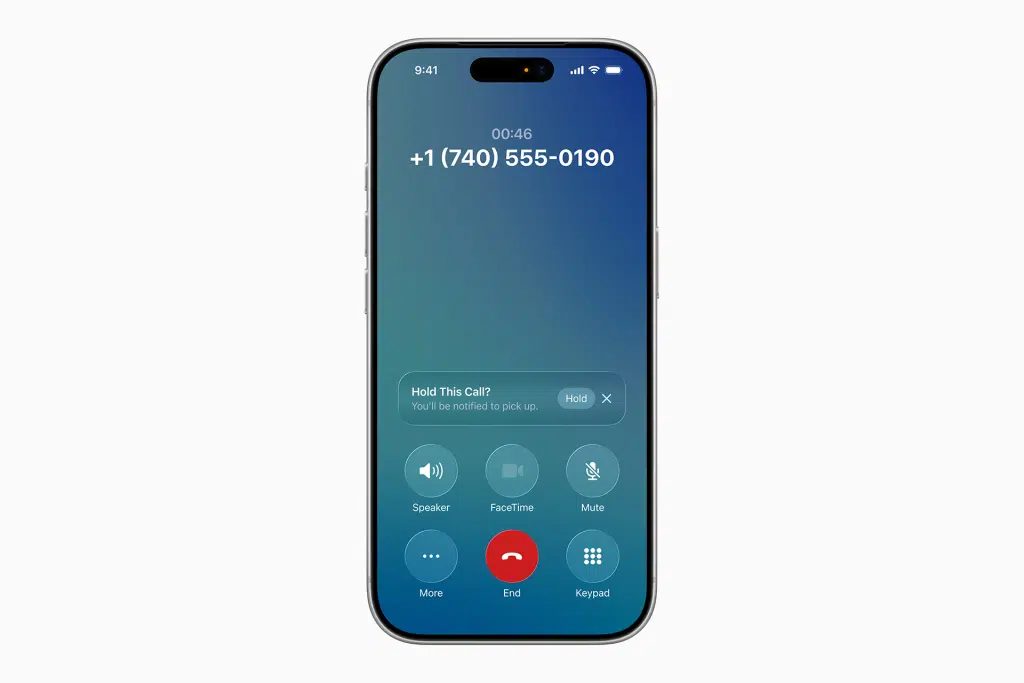

Recording phone calls on iPhone is a feature many users want for meetings, interviews, customer calls, or personal notes. While the iPhone does not have a simple built-in call recording button in all regions, several methods and apps make it possible.
This guide explains the available ways to record calls on iPhone, legal considerations, and practical tips. It covers related searches such as iPhone call recording, voice memo methods, and call recording apps.
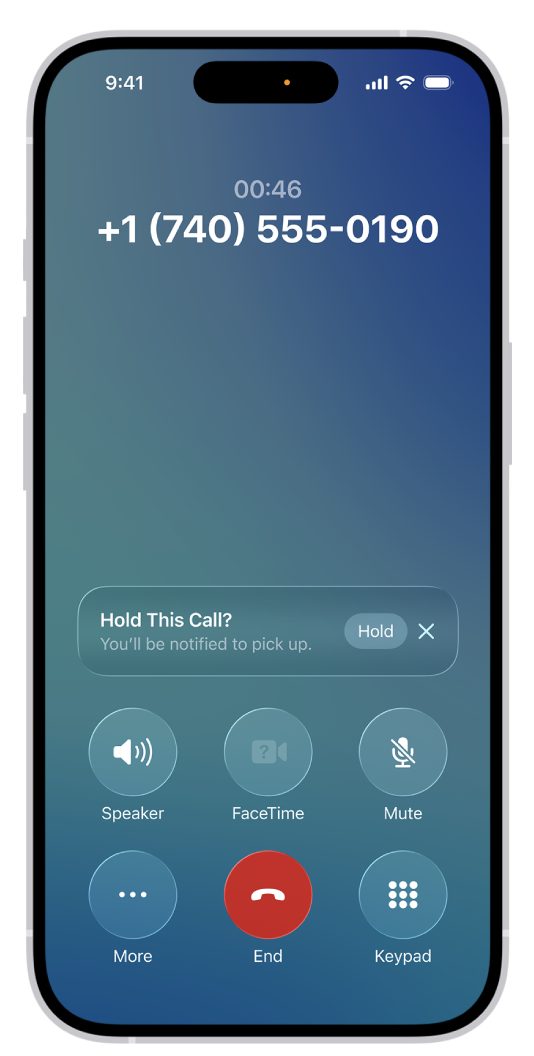
Quick answer: On iOS 18 and later, iPhone has built-in call recording in supported countries and regions. During a call with one other person, tap the More button, then tap Call Recording. Both people hear an audio notice, and the recording is saved automatically to a Call Recordings folder in the Notes app, where a transcript may also be available in supported languages. Call recording is not currently available in some places, including the European Union.
Can You Record Calls on iPhone?
Yes, but the method depends on your iOS version, region, and whether you use third-party apps. Apple has added more native support in recent updates, yet full call recording is still limited or requires additional steps in many countries.
Methods to Record Phone Calls on iPhone
1. Built-in Features (Where Available)
Some regions and newer iOS versions offer limited native call recording or integration with Voice Memos and other apps.
2. Third-Party Call Recording Apps
Apps available on the App Store can record calls. These usually require the call to be made through the app or use a conference-call style connection.
3. Voice Memos + Speaker Method
A simple workaround is to put the call on speaker and record with the Voice Memos app. This works but captures lower quality audio and ambient noise.
4. External Recording Devices
Hardware recorders or secondary devices can capture call audio, though this is less convenient.
Step-by-Step: Record a Call Using Voice Memos
- Start the phone call.
- Put the call on speakerphone.
- Open the Voice Memos app.
- Tap the record button.
- Conduct the call.
- Stop the recording when finished.
- Save and name the memo.
Legal Considerations for Call Recording
Call recording laws vary by country and region:
- Some places require only one-party consent
- Others require all parties to be informed and agree
- Recording without proper consent can be illegal
Always check local laws and inform the other person when required before recording.
Tips for Better Call Recordings
- Use a quiet environment
- Enable speakerphone for the Voice Memos method
- Test your chosen app before an important call
- Inform the other party if legally required
- Store recordings securely
- Label files clearly for easy retrieval
Limitations of iPhone Call Recording
- No universal one-tap recording button in all regions
- Third-party apps may require subscriptions
- Speaker method reduces audio quality
- Some apps are restricted by Apple’s policies
- Legal restrictions apply in many locations
Built-in iPhone Call Recording: Status Update
Apple’s official support guide confirms that you can record a phone call or FaceTime audio call on iPhone starting in iOS 18, and in the Phone app on iPad starting in iPadOS 26 and on Mac starting in macOS Tahoe. This makes the built-in option the simplest method for most users where it is available.
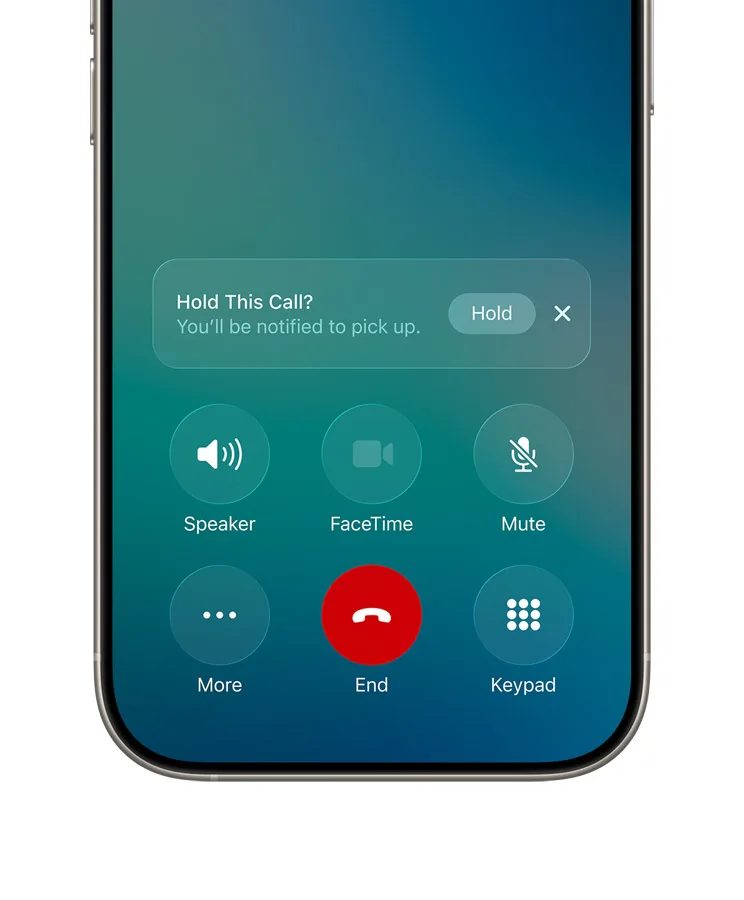
Key facts from Apple’s documentation:
- Recording works when you are talking to one other person.
- Both participants hear an audio notice that the call is being recorded.
- Recordings are saved to a Call Recordings folder in the Notes app.
- In select regions and languages, a transcript is created, with each speaker identified.
- On iPhones that support Apple Intelligence, you can read a summary of the call in Notes.
- The feature is on by default and can be turned off in Settings.
Apple lists call recording as not currently available in Azerbaijan, Bahrain, Egypt, the European Union, Iran, Iraq, Jordan, Kuwait, Morocco, Nigeria, Oman, Pakistan, Qatar, Russia, Saudi Arabia, South Africa, Turkey, the United Arab Emirates and Yemen. Check Apple’s official iPhone support pages for the latest list, as availability can change.
How to Record a Call with the Built-in Feature
- Make sure your iPhone is updated to the latest version of iOS.
- Open the Phone app and make or answer a call.
- Tell the other person you would like to record the call and confirm they agree.
- Tap the More button on the call screen, then tap Call Recording.
- Wait for the audio notice, which both of you will hear, then continue the conversation.
- To stop, tap the stop button or simply hang up.
- Tap View Saved Call to open the recording in Notes.
How to Find, Play and Share Recorded Calls
- Open the Notes app.
- Go to the Call Recordings folder.
- Tap the note for the call, then tap the recording to play it.
- Use the options menu to save the audio file, share it or delete it.
Deleting the audio recording also deletes its transcript, so save anything you need first.
How to Use Call Transcripts
Where transcription is supported, spoken words are transcribed automatically and the speaker of each statement is identified. The transcript may not appear straight away, as processing can take a little time. While viewing it, you can:
- Tap a line of text to play the audio from that point
- Search the transcript for a word or name
- Copy the transcript or add it to the note
- Read an Apple Intelligence summary on supported iPhones
Apple advises checking a transcript’s accuracy before relying on it, since it may not perfectly represent the conversation.
How to Turn Off Call Recording
If you do not want the option to appear, go to Settings, tap Apps, tap Phone, then tap Audio Call Recording and turn it off.
Comparing iPhone Call Recording Methods
| Method | Cost | Audio quality | Transcript | Best for |
|---|---|---|---|---|
| Built-in Call Recording | Included with iOS | Good, both sides recorded | Yes, in supported languages | Most users in supported regions |
| Third-party recording apps | Often subscription-based | Usually good | Sometimes | Regions without the built-in feature, business use |
| Speakerphone + second device | Free | Fair, room noise included | Depends on device | Occasional quick recordings |
| External hardware recorder | Device cost | Varies | Rarely | Journalists and specialist needs |
Recording When the Built-in Feature Is Not Available
If you are in a region where Apple’s call recording is not offered, the alternatives are:
- Third-party apps: many work by merging a recording line into a three-way call. Check the app’s reviews, pricing and privacy policy, and whether your mobile network supports conference calls.
- A second device: put the call on speaker and record using another phone, tablet or computer. Recording with Voice Memos on the same iPhone during an active call is often unreliable, so a second device is the safer choice.
- Recording a call from a computer: if you take calls on a Mac or use an online calling service, the platform’s own recording tools may be easier.
Etiquette and Consent Best Practices
Even where the law allows recording with one person’s consent, telling everyone on the call is the respectful and safest approach:
- Ask at the start: “Is it okay if I record this call so I can take accurate notes?”
- Explain why you are recording and how long you will keep the recording.
- Store recordings securely and delete them when no longer needed.
- Be especially careful with business calls, which may also fall under data protection rules such as UK GDPR when personal data is involved.
Troubleshooting Call Recording on iPhone
- No Call Recording option: check that iOS is up to date, that the feature is available in your region and that Audio Call Recording is turned on in Settings.
- No transcript: your language or region may not support transcription, or processing may still be in progress.
- Recording on group calls: Apple’s feature is designed for calls with one other person.
- Cannot find the recording: look in the Call Recordings folder in Notes, and check that Notes is syncing with iCloud if you use more than one device.
Key Takeaways
- iPhone call recording is possible through native features, apps, or workarounds.
- The Voice Memos plus speaker method is a free basic option.
- Third-party apps generally provide better quality and convenience.
- Legal consent rules must be followed.
- Audio quality and reliability vary by method.
- iOS 18 and later include built-in call recording in supported regions, with an audio notice to both people.
- Recordings and transcripts are saved in the Notes app’s Call Recordings folder.
Frequently Asked Questions
Does iPhone have built-in call recording?
Partial support exists in some regions and iOS versions, but a universal simple recorder is not available everywhere.
What is the easiest free way to record a call on iPhone?
Using the Voice Memos app while the call is on speakerphone is the simplest free method.
Are call recording apps allowed on iPhone?
Yes, but they must follow Apple’s guidelines and often use specific technical methods to record.
Is it legal to record phone calls on iPhone?
It depends on your local laws. Many places require consent from one or all parties.
Does the other person know when I record a call on iPhone?
Yes. When you use Apple’s built-in call recording, both participants hear an audio notice that the call is being recorded. This is part of the feature’s design. Third-party apps work differently, but you should still tell the other person and get their agreement before recording.
Where are iPhone call recordings saved?
Recordings made with the built-in feature are saved automatically to a Call Recordings folder in the Notes app. Open the note to play the audio, view the transcript where available, or save, share or delete the recording. Deleting the audio also deletes its transcript.
Why can’t I see the Call Recording button on my iPhone?
The option may be missing if your iPhone is not on iOS 18 or later, if call recording is not available in your country or region, or if Audio Call Recording has been turned off in Settings. Apple lists the regions where it is unavailable, including the European Union.
Can iPhone transcribe recorded calls?
Yes, in select regions and languages. The transcript appears in the Notes app with each speaker identified, and you can search, copy or play audio from any line. On iPhones that support Apple Intelligence, you can also read a summary of the call. Always check transcripts for accuracy.





Leave a Reply