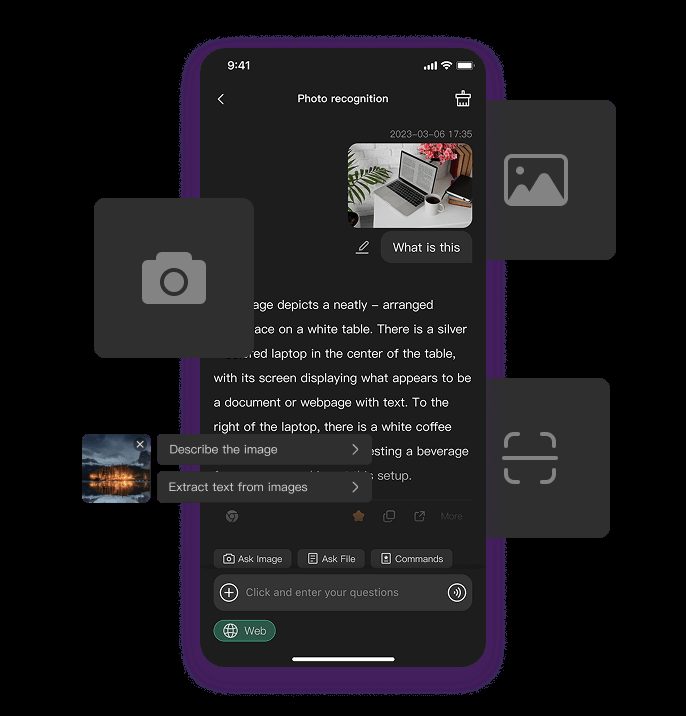

ChatGPT with photos allows users to upload images and ask questions about them. This feature, often searched in other languages as “чат гпт с фото,” enables people to analyze pictures, extract text, identify objects, and get descriptions or advice based on visual content.
This guide explains how ChatGPT photo analysis works, what you can do with it, its limitations, and practical tips for better results.
Quick answer: To use ChatGPT with photos, open ChatGPT on the web or in the mobile app, tap the attachment or plus icon, upload a photo or take one with your camera, then type what you want to know or do. ChatGPT can describe images, read text, explain charts, solve problems shown in a picture and, with its image generation features, create or edit images based on your instructions.
What Is ChatGPT with Photos?
ChatGPT with photos is the ability to upload an image and interact with the AI about its content. Users can ask the model to describe the image, read text inside it, identify objects, suggest improvements, or answer questions related to what is shown.
This feature is available in supported versions of ChatGPT and is commonly used for both personal and professional tasks.
What You Can Do with ChatGPT Photo Analysis
- Describe what is in an image
- Extract and translate text from photos
- Identify objects, products, or landmarks
- Analyze charts, diagrams, or screenshots
- Get feedback on design or presentation slides
- Help with homework or study materials shown in images
- Suggest edits or improvements for photos
How to Use ChatGPT with Photos
- Open a supported version of ChatGPT.
- Click the image upload or attachment icon.
- Select a photo from your device.
- Type your question or instruction about the image.
- Review the response.
- Ask follow-up questions if needed.
Tips for Better Results with Photo Uploads
- Use clear, well-lit images
- Crop the image to focus on the important area
- Ask specific questions instead of vague ones
- Upload higher-resolution photos when detail matters
- For text extraction, ensure the text is readable
- Provide context if the image alone is ambiguous
Limitations of ChatGPT Photo Analysis
- Very small or blurry text may not be read accurately
- Complex or crowded images can reduce accuracy
- The model may misidentify uncommon objects
- It cannot access real-time or private information from the image
- Results should be verified for important decisions
- File size and format limits may apply
Common Use Cases
Students
Upload textbook pages or notes for explanations and summaries.
Professionals
Analyze screenshots, reports, or design mockups.
Everyday Users
Identify plants, products, or translate signs from photos.
Content Creators
Get descriptions or ideas based on visual references.
What ChatGPT Can and Cannot Do with Photos
| Task | Works well | Be careful |
|---|---|---|
| Describing a scene | Objects, setting, colours, layout | Small or blurred details |
| Reading text (OCR) | Clear printed text, screenshots, signs | Messy handwriting, low resolution |
| Charts and diagrams | Explaining trends and labels | Exact values from tiny or crowded charts |
| Homework and maths | Explaining steps from a photo of a problem | Always check the final answer |
| Translating text in images | Menus, labels, short documents | Specialist or legal wording |
| Identifying plants, products or landmarks | General suggestions | Safety decisions, such as edible plants |
| People in photos | Describing clothing, expressions, setting | It is designed not to identify real people from their faces |
Analysing Photos vs Creating Images
People searching for “ChatGPT with photos” usually want one of two things:
- Image analysis (vision): you upload a photo and ChatGPT explains, describes or extracts information from it.
- Image generation and editing: you describe an image, or upload one, and ask ChatGPT to create a new picture or change the style, background or details.
Both happen in the same chat. Be explicit about which one you want, for example “Describe this photo” versus “Create a watercolour version of this photo”.
How to Upload a Photo on Mobile
- Open the ChatGPT app on your iPhone or Android phone.
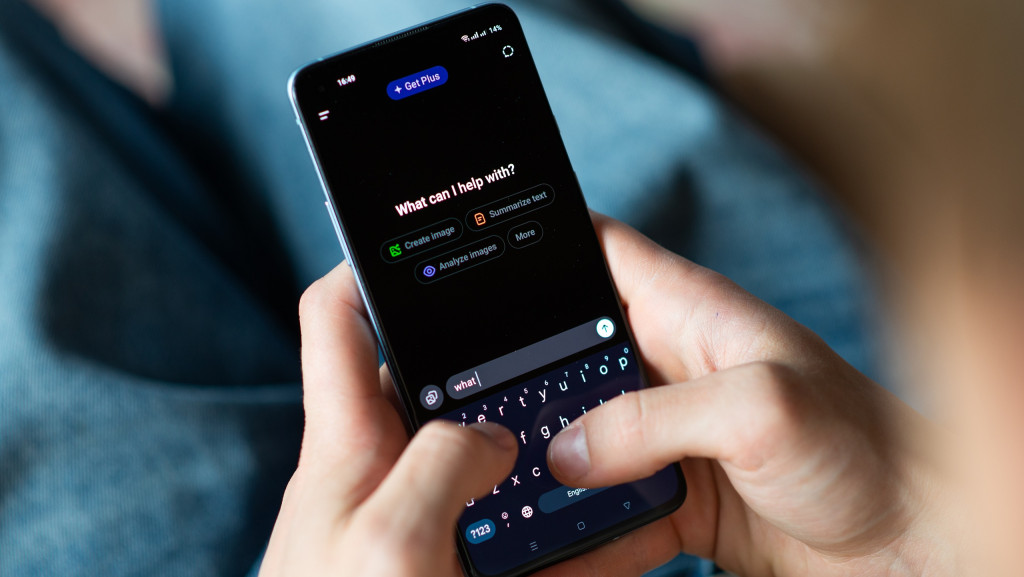
- Tap the plus or attachment icon next to the message box.
- Choose the camera to take a new photo or the photo library to pick an existing one.
- Crop the image if needed so the important part fills the frame.
- Type your request and send it.
How to Upload a Photo on a Computer
- Go to ChatGPT in your browser or open the desktop app.
- Click the attachment icon, or drag and drop the image into the chat window.
- You can also paste a screenshot directly into the message box.
- Add your question and press Enter.
OpenAI’s developer documentation lists PNG, JPEG, WEBP and non-animated GIF as supported image types, so convert unusual formats such as HEIC to JPEG if an upload fails.
Example Prompts for Photos
- “What is written on this receipt? Put the items and prices in a table.”
- “Explain what this chart shows in three bullet points.”
- “Translate the text on this menu into English and explain unfamiliar dishes.”
- “What might be wrong with this plant based on the leaves? What should I check next?”
- “Here is a photo of my maths homework. Explain the method step by step without just giving the answer.”
- “Suggest a better layout for this room based on the photo.”
- “Turn this photo of my dog into a cartoon-style illustration.”
How to Write Better Photo Prompts
- Say what the photo is. “This is a screenshot of an error message” gives useful context.
- State the goal. Ask for a summary, a translation, a table or an explanation.
- Point to the area that matters. “Focus on the label in the bottom right corner.”
- Set the format. Request bullet points, a table or a short paragraph.
- Ask follow-up questions. Refine the answer instead of starting again.
Common Mistakes to Avoid
- Uploading dark, blurred or angled photos, which reduce accuracy
- Expecting exact readings from tiny text or crowded charts
- Trusting medical, legal or safety conclusions without checking with a qualified person
- Uploading photos of documents that contain passwords, card numbers or other sensitive information
- Asking several unrelated questions about different images in one message
Privacy and Safety Tips
Photos you upload are processed by OpenAI. Review the data controls in ChatGPT settings, where you can choose whether your content may be used to improve models. Avoid uploading images of other people without their permission, and remove personal details such as addresses or ID numbers from screenshots before sharing them.
Free vs Paid Access
Photo uploads are available to free users, though usage limits apply and are lower than on paid plans. Paid plans generally offer higher limits and access to more advanced models. Because OpenAI changes plan details regularly, check the current plan comparison on the ChatGPT pricing page.
What to Do When ChatGPT Gets a Photo Wrong
Image analysis is impressive but not perfect. If an answer looks wrong, try these steps before giving up:
- Retake the photo in better light, holding the camera straight above flat documents to avoid distortion.
- Crop to the relevant part so ChatGPT is not distracted by background details.
- Correct it directly. Say “The second line actually reads 12, not 17. Please recalculate.” ChatGPT can use your correction in the rest of the conversation.
- Ask it to show its reading first. For receipts or forms, ask “Transcribe exactly what you can see before analysing it”, so you can spot misreadings early.
- Split large tasks. Upload one page at a time for long documents instead of a single photo of several pages.
- Ask about confidence. Prompts such as “Which parts of this image are you unsure about?” help highlight areas you should check yourself.
ChatGPT Photo Features Compared with Google Lens
Google Lens is designed for quick visual search, such as finding similar products, identifying landmarks or copying text from the camera view. ChatGPT is better suited to conversation about an image: explaining what it means, answering follow-up questions, turning it into structured notes or combining it with your own instructions. Many people use both, Lens for fast lookups and ChatGPT for deeper explanation.
Key Takeaways
- ChatGPT with photos lets you upload images and ask questions about them.
- It can describe content, extract text, and provide analysis.
- Clear images and specific questions produce better results.
- The feature is useful for study, work, and everyday tasks.
- Always verify important information from the AI’s response.
- Be clear whether you want ChatGPT to analyse a photo or create and edit an image.
- Clear, well-lit, cropped photos and specific prompts give the most accurate answers.
Frequently Asked Questions
Can ChatGPT analyze photos?
Yes. Supported versions of ChatGPT allow users to upload images and ask questions about their content.
What languages does ChatGPT photo analysis support?
It can work with images containing text in many languages and respond in the language you use.
Is there a limit to photo uploads?
Yes. There are usually limits on file size, number of images per conversation, and usage depending on your plan.
How accurate is ChatGPT at reading text from images?
Accuracy is generally good with clear text but decreases with blurry, small, or stylized fonts.
Can ChatGPT edit my photos?
Yes. With its image generation features, ChatGPT can create new images based on a photo you upload, such as changing the style, adding or removing elements or creating an illustration. Results are generated images rather than precise edits, so for exact retouching a dedicated photo editor may still be better.
Can ChatGPT identify people in photos?
ChatGPT is designed not to identify real people based on their facial features. It can describe what is visible, such as clothing, setting, expressions and actions, and it can read names if they appear as text in the image, but it will not recognise who someone is from their face.
Why does my photo upload fail in ChatGPT?
Uploads can fail because of an unsupported file type, a very large file, a weak internet connection or reaching your plan’s usage limit. Try converting the image to JPEG or PNG, reducing its size, checking your connection or waiting until your limit resets before trying again.
Can I upload several photos at once?
Yes, you can attach more than one image in a single message, which is useful for comparing products, reviewing pages of a document or showing a problem from different angles. Tell ChatGPT how the images relate, for example “Compare photo one and photo two”, to get a clearer answer.




Leave a Reply